Start with the label face and the printhead
Most print quality problems begin at the point where the label meets the printhead. A dusty head, glue build-up or a worn platen can leave pale bands across text, barcodes and QR codes. If the marks appear in the same place on every label, the fault is usually mechanical rather than a settings issue.
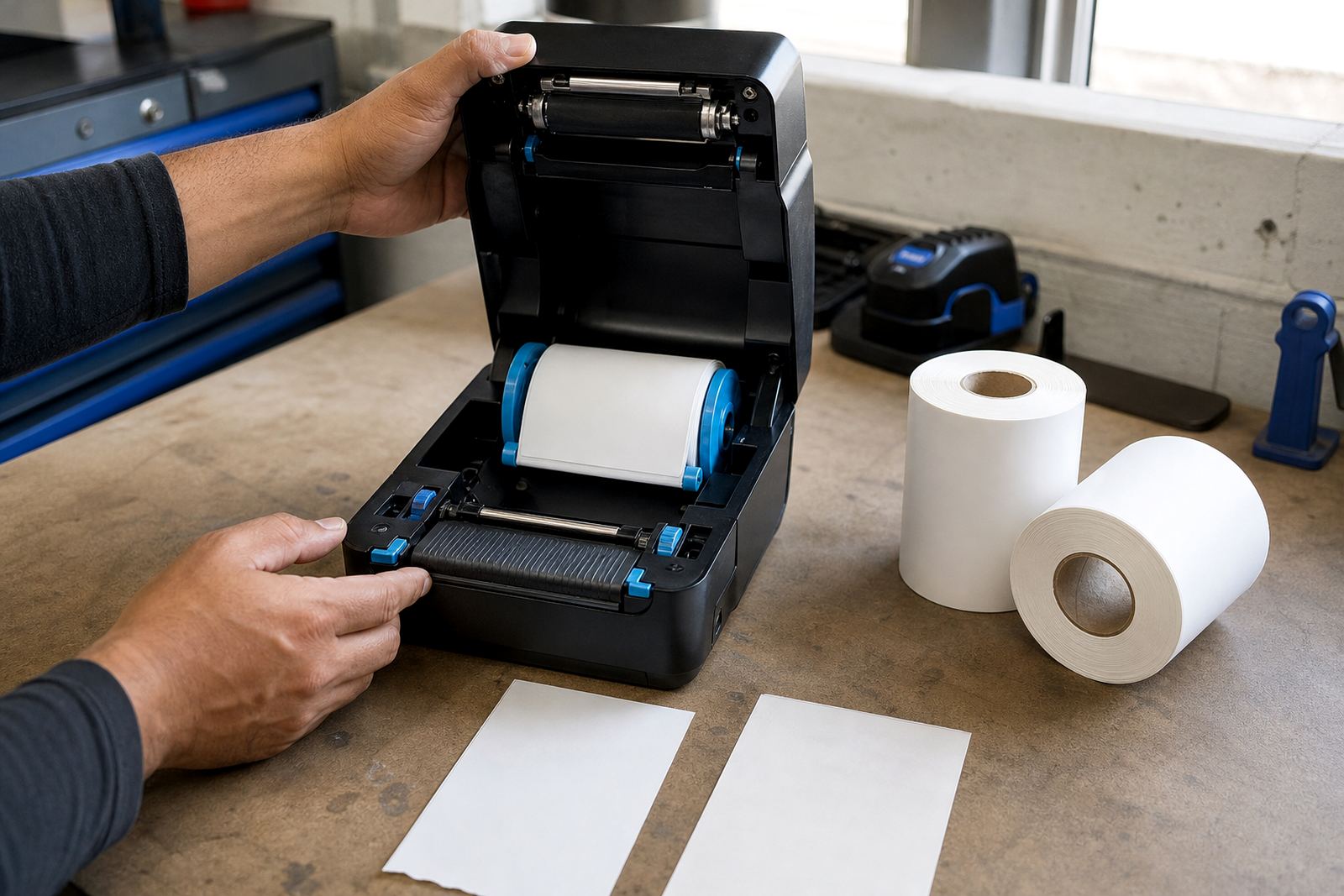
Open the cover and check the print path under bright light. Look for label dust, adhesive residue, torn backing paper and small scraps caught near the head. On mobile units, a quick clean with the right cleaning swab often restores darker, cleaner output without changing the rest of the setup.
- Power off before cleaning the printhead.
- Remove loose label dust from rollers and guides.
- Check for a nick or scratch on the printhead line.
- Make sure labels feed flat, not at an angle.
Darkness settings and speed need to work together
Fading can come from a low heat setting, but it can also appear when the printer runs too fast for the label stock. Thermal transfer media, direct thermal stock and ribbon-based print jobs each need a different balance of heat and speed. If the print is dark in one corner and pale in another, the setting may be only part of the issue.
Test with a short label that includes text, a barcode and a QR code. Increase darkness in small steps and keep the print speed steady long enough to judge the result. Too much heat can blur edges, make bars swell and leave the label looking glossy where it should be crisp.
- Compare one clean sample at each setting change.
- Use the same label size for every test.
- Do not push darkness higher than the stock needs.
- Watch for smudging around fine text and codes.
Barcode and QR failures need a closer look
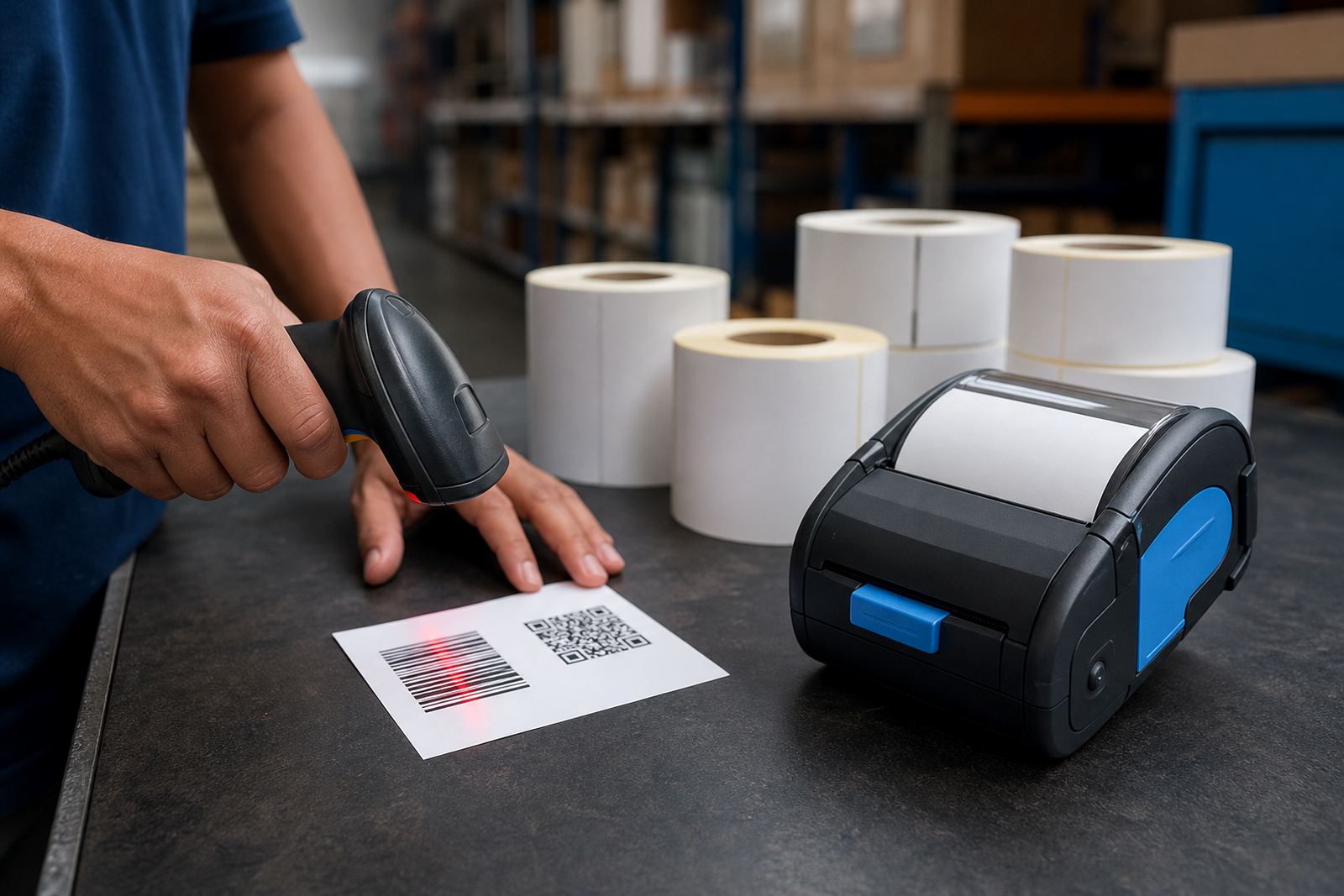
When scanners reject a label, the problem may not be the code itself. Narrow bars can break up if the printhead is dirty, if the label is moving during printing, or if the print width is set wrongly for the media loaded. A code that seems fine to the eye can still fail at the counter or in the warehouse aisle.
Check that the printer is calibrated to the label gap or black mark style in use. Confirm the barcode is large enough for the scan distance and that quiet zones are left clear around the code. Small labels leave less room, so the layout must be neat and consistent.
- Print a plain text label beside the barcode sample.
- Check the code for broken lines or uneven bars.
- Keep logos and text away from the code edges.
- Rescan after calibration and a fresh clean.
Battery health changes print consistency in the field
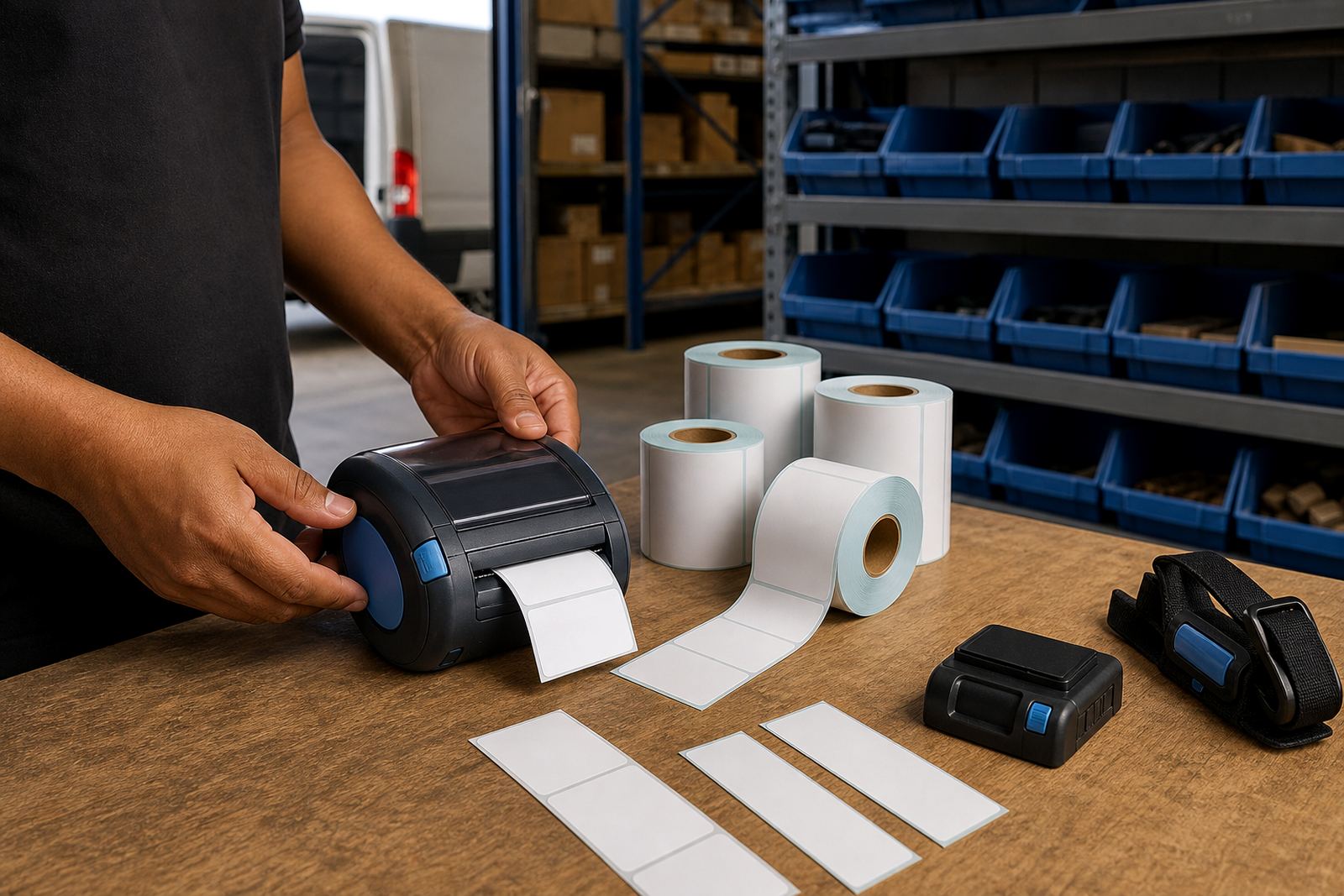
Mobile printers often behave badly when the battery is weak. Labels may print lighter, feed unevenly or slow down during longer runs. That can look like a media problem, yet the root cause is often power that drops under load. Belt clip wear and loose battery seating can add to the trouble on site.
Test the battery with a full charge and watch whether the print quality stays steady across several labels. If the first few are fine and the later ones fade, the battery may be dropping too low for reliable heat output. Replace swollen or tired batteries before they cause more label waste.
- Check the battery contacts for dirt or wear.
- Seat the battery firmly before printing.
- Test with a fully charged pack.
- Inspect the belt clip if the unit is carried often.
Different remedies are needed for direct thermal and thermal transfer
Direct thermal labels darken through heat alone, so faded output usually points to heat, head condition, calibration or poor stock choice. Thermal transfer jobs rely on ribbon, heat and label stock working together. If the ribbon wrinkles, the print can show gaps, patchy bars or heavy stripes across the label face.
Use the correct media for the job and keep rolls clean and dry. In coastal areas such as Cape Town and Gqeberha, moisture can affect storage and cause label edges to curl when rolls are left open near loading bays. That makes feed issues more likely and can also affect scan quality when the code sits on a warped surface.
- Match the label type to the print method.
- Store rolls flat and sealed where possible.
- Check ribbon tension on thermal transfer jobs.
- Watch for curl, edge lift and damp backing paper.
When the fix is not on the printer menu
Some faults sit outside the screen settings. A misaligned label roll, a worn platen roller, bad pairing, or a loose connection can all show up as poor print quality. Bluetooth and Wi-Fi pairing should stay stable once set up, but a device that drops connection mid-job may restart the print and leave partial labels or repeated data.
If the same issue returns after cleaning and calibration, inspect the hardware path from roll to output tray. Our team handles on-site setup, print quality fixes, label jam clearing, battery testing and preventive servicing for warehouses, couriers and retail stockrooms across South Africa.
- Recheck roll seating and guide alignment.
- Test pairing before a full label run.
- Look for loose covers or worn clips.
- Escalate recurring faults for repair, not repeated reprints.