Barcode and QR codes ask for different print habits
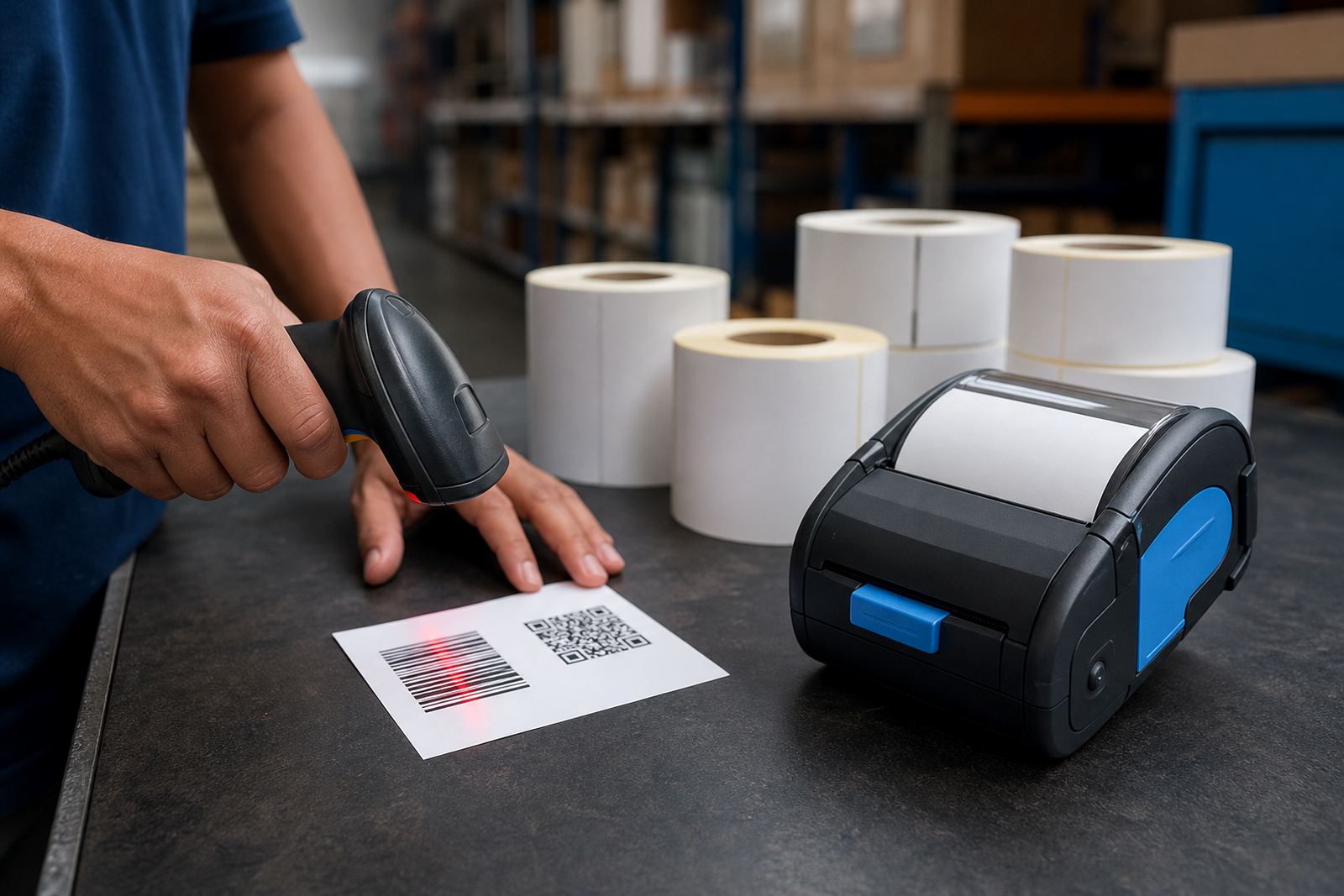
A linear barcode carries data in narrow bars, so the printer must keep edge definition tight and the label surface steady. A QR code uses a square grid, which means the unit must place small modules cleanly without filling in the gaps. On mobile printers, the same machine can handle both, but the settings are not identical.
Direct thermal units print by heat on coated labels and are useful for short-life stock labels, courier labels and pick notes. Thermal transfer units use a ribbon, which gives better durability where labels face handling, abrasion or mild moisture. If a warehouse sends parcels and also labels stock bins, the two print methods may both be useful across the floor.
Print width matters as much as print method. A narrow mobile unit may suit small asset tags and shelf labels, while a wider unit gives more room for larger QR blocks, serial numbers and human readable text under the code. The code should sit with enough quiet space around it, otherwise scanners struggle to read the edges.
Set the label size before you start printing batches
Barcode and QR jobs fail often because the label size does not match the layout stored in the printer. When the roll width, sensor setting and media type are correct, the code sits where it should and the text does not drift off the edge. This matters on mobile units that are moved between counters, vans and stockrooms.
- Match the label width to the printer’s supported print width.
- Confirm the gap, black mark or continuous media setting.
- Check the orientation of the label roll before loading.
- Keep the barcode height high enough for scanner reading.
- Allow space for text, serial numbers and batch codes.
For smaller labels, a QR code often needs more room than people expect. If the code is squeezed to fit, the scanner sees blur instead of blocks. For linear barcodes, bar thickness must stay even from left to right, especially when the printer is used on the move and the battery is getting low.
Bluetooth and Wi-Fi pairing affect print consistency
Mobile printers usually connect through Bluetooth or Wi-Fi, and the connection method can affect the way print jobs arrive. A stable connection helps preserve barcode placement, label count and format. If the pairing slips or the network drops out, the job may print with the wrong layout or repeat the wrong label.
When pairing is set up properly, staff can move from one point in the warehouse to another without retyping each label. That is useful for receiving, picking, dispatch and retail stockroom work. The device still needs a checked profile for the barcode or QR layout, because wireless convenience does not fix a poor format.
- Use one saved profile for the main label type.
- Keep the printer name clear for the team.
- Test print after pairing changes.
- Check barcode scan quality after each new roll.
- Confirm the device is connected to the right phone, tablet or handheld terminal.
Battery condition changes the way mobile code labels print
A tired battery can affect print darkness, feed consistency and the way small QR modules look on the label. Many mobile units will still switch on when the battery is weak, yet the printhead may not heat evenly. That can leave pale bars, broken edges or shaded blocks that scanners dislike.
Battery testing should be part of normal servicing, especially where the printer is used for long picking runs or courier loading. Belt clips and battery packs take knocks in real work, so loose fittings can interrupt the job. If the label starts looking faded halfway through a batch, check the battery before blaming the media.
Battery replacement is one of the simpler repairs, but only after the charging contacts and the power path have been checked. A unit that is clean, charged and seated properly will usually give steadier output than one that is being pushed with a poor battery. On mobile barcode jobs, steadiness matters more than speed.
Printhead cleaning keeps the bars and squares readable
The printhead is the part that does the real work, and dirt builds up fast on mobile label printers. Adhesive dust, paper lint and ribbon residue can all leave fine marks across a barcode or QR code. Even a small streak can turn a clean scan into a failed one.
Cleaning should be gentle and regular. Use the correct cleaning method for the printer type, and let the head cool before touching it. If the printer is used on direct thermal labels, residue can build up faster than some teams expect. Thermal transfer units also need attention where ribbons shed debris during busy shifts.
- Clean the printhead after a run of poor quality labels.
- Check the platen roller for adhesive marks.
- Remove trapped label scraps from the feed path.
- Inspect for black lines or faded strips on the print.
- Test a fresh label roll after cleaning.
Print quality fixes are often about small details rather than major faults. A clean head, the correct ribbon, the right pressure and a flat label path can turn an unreliable scan into a solid one. This is especially important for QR codes that carry more data in a tighter space.
A practical site check before using barcodes in the field
Before sending mobile printers into a warehouse aisle, delivery route or retail stockroom, it helps to run a short checklist. The point is not to overcomplicate the process, only to catch the issues that break scanning later. If the label must survive handling, choose the right media and confirm the print is legible in normal light.
- Confirm whether the label is for short use or longer wear.
- Check if direct thermal or thermal transfer suits the job.
- Print a sample label and scan it with the reader it will be used on.
- Look for quiet margins around the barcode or QR code.
- Verify the label size on the roll matches the saved layout.
- Inspect the battery, clip and casing before field use.
On-site setup helps when teams are moving between branches in Cape Town, Johannesburg, Durban, Pretoria or Gqeberha. A printer that is calibrated on the actual label roll and tested in the actual working position is less likely to give trouble later. That is useful where stock moves quickly and labels must stay readable after handling.