Start with the model, media and job type
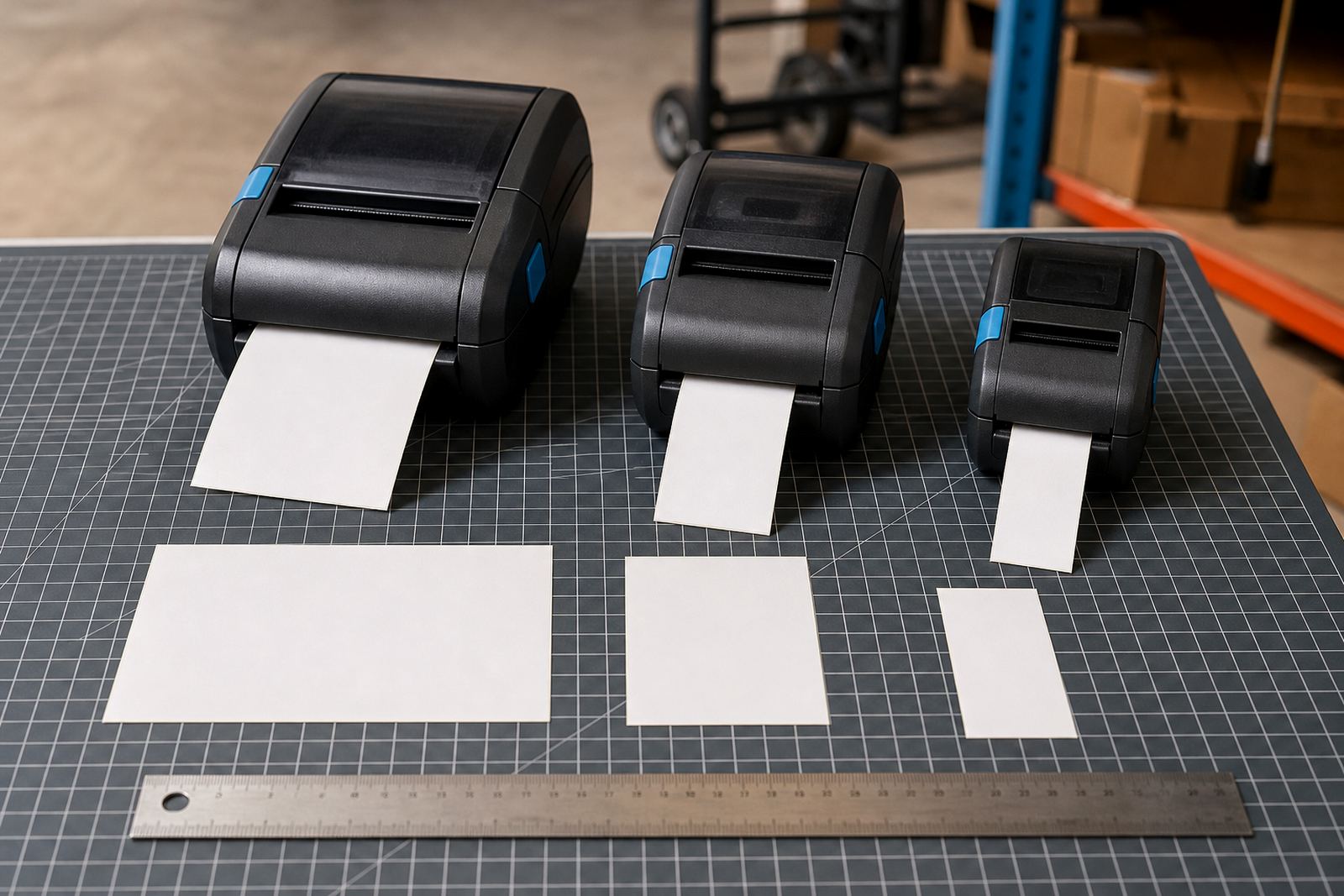
Before power-up, match the printer to the job. Direct thermal units print on heat-sensitive labels and are often used for short-life shipping or stock labels. Thermal transfer units use a ribbon and suit labels that must hold up better in storage, handling or sunlight. Check the print width, because a 2 inch unit will not suit every carton label and a wider unit may be needed for shelf tags, pallet labels or shipping layouts.
Look at the label roll size and the core fit before loading anything. In South African stockrooms the wrong roll width can waste labels fast, especially where barcode size and item descriptions need to stay clear. If the printer will print QR codes, small text or longer batch details, the label format needs to suit that from the start.
- Check if the unit takes direct thermal media or thermal transfer media.
- Check label width, length and core size against the printer guide.
- Match the label type to the storage life and handling it will face.
- Set aside the right ribbon if the unit uses thermal transfer.
Charge the battery and check the fitments
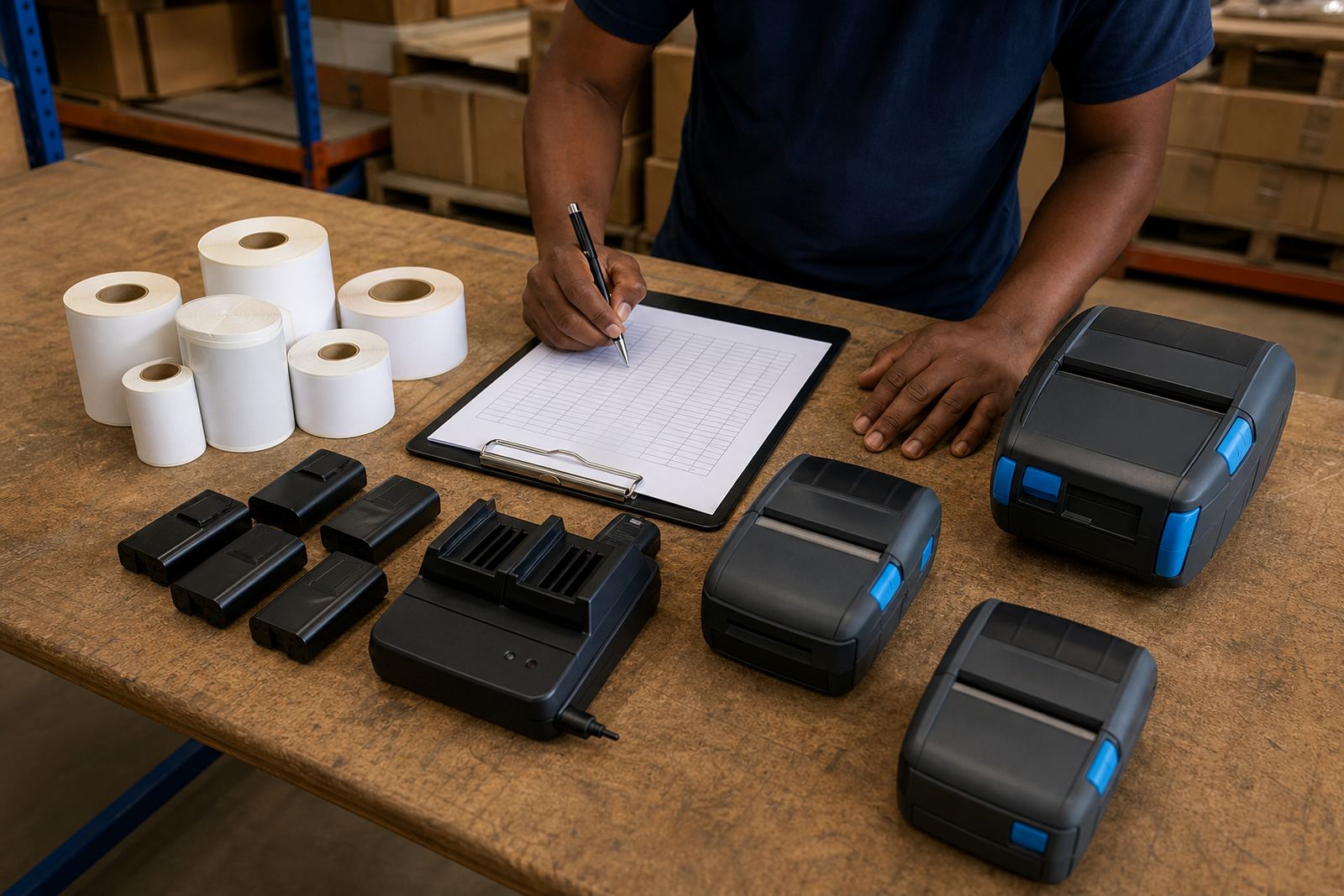
Mobile units live or die by battery condition. Charge the battery fully before the first run and inspect the contacts for dirt or poor seating. A loose battery can cause random shutdowns, which is ugly in a courier bay or at receiving where scans and labels need to keep moving.
While the battery is charging, check the belt clip and the casing for cracks or bends. The clip should hold securely without cutting into clothing or snagging on packing lines. If the printer feels too heavy on a belt, it may be better carried in a pouch or mounted differently for the shift pattern.
- Charge the battery before first use and test it under normal workload.
- Inspect the battery latch, contacts and housing.
- Check the belt clip for secure fit and smooth movement.
- Replace damaged clips before the unit goes onto the floor.
Pair it to the handheld or network
Most mobile printers are paired by Bluetooth for close-range work, while some sites use Wi-Fi where the printer must sit on the warehouse network. Pairing should happen after the printer is powered on, with the right device name selected and the correct permissions set on the handheld or workstation. If the site uses more than one printer, name them clearly by zone or bay so staff do not print to the wrong unit.
Test the connection from the same spot where the printer will be used. Walls, steel racking and busy radio environments can affect the signal. If the printer supports Wi-Fi, confirm that it joins the right network and keeps the link when moved a short distance across the work area.
- Choose Bluetooth or Wi-Fi according to the site layout.
- Give each printer a clear name before live use.
- Test the connection where the printer will actually work.
- Check that the handheld sends the job without delay or missing characters.
Load labels and set the calibration correctly
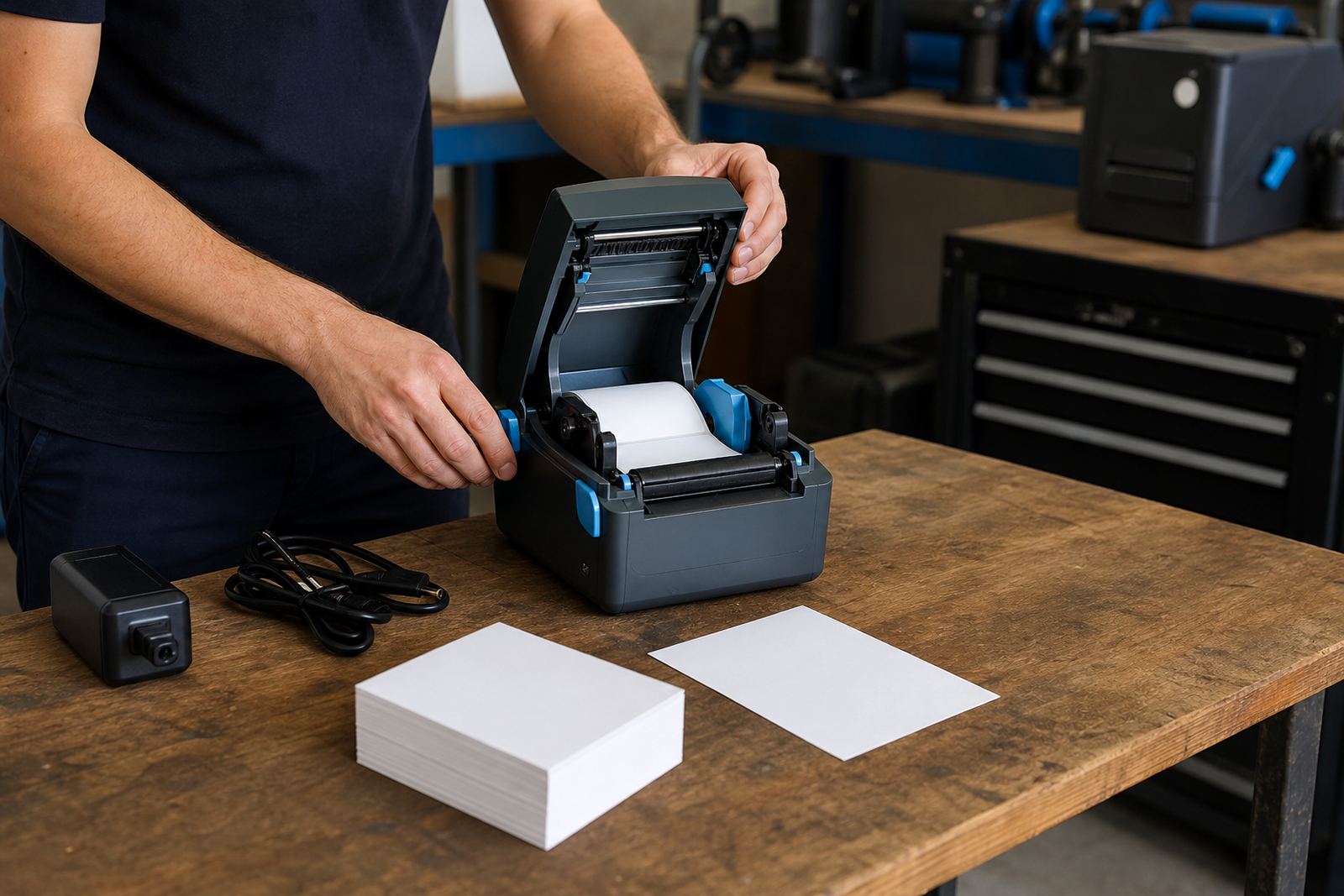
Label loading should be neat, straight and free of slack. Feed the roll through the guides, close the cover and confirm that the stock path is clean. If the roll is too loose or the guides are set poorly, the printer may drift, skip labels or cut through the wrong gap.
Calibration matters more than most people expect. Run the calibration so the printer can read label gaps, black marks or continuous stock correctly. A good setup also checks darkness, speed and the starting position so the first print lands where it should. This is where print quality fixes begin, not after the labels have already been wasted.
- Load the roll square and keep the path clear.
- Set the guides so the label cannot wander.
- Run calibration for the stock type in use.
- Adjust darkness and speed for the cleanest print.
Print a test label and inspect the result
A proper test label should include text, a barcode and a QR code if the site uses them. The print should be sharp enough to scan first time, with no fading, streaks or broken edges. If the code is too light, too dark or crushed into the margin, the printer settings need attention before live work begins.
Check the label face for smudging and the backing for poor feed marks. Also look for dust or adhesive residue around the printhead area. A dirty printhead can make new units look faulty when the real issue is only film, paper dust or adhesive build-up.
- Print a sample with text, barcode and QR code.
- Confirm scan quality at the point of use.
- Look for streaks, gaps or faded sections.
- Clean the printhead if the output is patchy or uneven.
Train the operator before the unit goes live
Even a well set printer can struggle if the operator has not been shown the basics. Train staff on loading, pairing, battery checks, cleaning and clearing a simple label jam. In busy Cape Town, Johannesburg or Durban stockrooms, the person at the printer often needs to sort small issues without waiting for a technician on site.
Keep the procedure short and practical. Show which labels are approved, how to spot a low battery, what a good print looks like and when to stop using the printer. If the site runs more than one device, make sure each user knows which printer belongs to which bay or line.
- Show the loading path and the correct cover close.
- Demonstrate cleaning for the printhead and sensors.
- Explain how to clear a minor jam safely.
- Confirm who to contact for setup, servicing or repairs.
Set a maintenance rhythm from day one
Keeping new units clean and checked extends their life. Build in printhead cleaning, battery testing, label path checks and a quick belt clip inspection. Where printers are moved through dust, cardboard fibres or coastal humidity in places like Cape Town and Gqeberha, small residue builds up faster than people expect.
Preventive servicing does not need to be complicated. A short inspection can catch weak batteries, worn clips, rolled-up adhesive and early print quality problems before they spread through the week. If the printer starts jamming, dropping connection or printing off-centre, stop and reset the basics before the next shift.
- Clean the printhead on a regular site schedule.
- Test battery health before heavy-use periods.
- Check label feed and output alignment weekly.
- Record recurring faults so they do not become routine.