Start with the label, not the printer
The easiest way to narrow the width is to look at the label you need to print every day. A narrow stock tag needs less space than a shipping label with item name, batch detail and a barcode under it. Measure the finished label in millimetres, then compare that with the printable width of the mobile printer head so the layout does not feel cramped.
In a warehouse or retail stockroom, the label usually has to fit a barcode, a short line of text, and sometimes a QR code for scanning into stock systems. If the print area is too small, the code gets squeezed, the text wraps badly, and the operator starts reprinting labels that should have worked first time.
- Measure label width and height before you decide.
- Leave room for quiet zones around barcodes and QR codes.
- Check whether the label needs one line or several lines of text.
- Match the printer to the format you use most often, not the rare long label.
Direct thermal or thermal transfer, and why width matters
Direct thermal printers suit labels that are used for a shorter period, such as courier labels, warehouse movement labels and other stockroom jobs where the print does not need ribbon. Thermal transfer printers use a ribbon and give better resistance for labels that must hold up to handling, scuffing or more demanding storage conditions. The width question sits beside that choice, because both types still need enough print area for the job.
A wider printer gives more room for variable data, larger barcodes and readable text. Narrower printers are handy when the label space is tight, but they need a cleaner layout and more careful calibration. If your labels must stay readable in humid Cape Town conditions or through busy dispatch work, the print method and width should be looked at together.
- Use direct thermal for short-life labels and fast turnaround.
- Use thermal transfer where durability matters more.
- Check that the chosen width fits both the code and the text.
- Ask whether the label stock is supplied in the exact size you need.
Barcode, QR code and text layout on one label
For many teams the real question is not only how wide the printer is, but how much content sits on each label. A barcode needs clean spacing, and a QR code needs enough open area around it for scanning to stay reliable. If you also want a product name, SKU and location code, a wider printhead usually makes the layout easier to read at a glance.
Mobile label printers with a wider print area can handle mixed layouts without forcing every field into a tight block. That matters in Johannesburg depots, Durban dispatch areas and retail back stockrooms where one label may carry several fields. If the width is too limited, operators often shrink text so much that staff at receiving can no longer read it without scanning.
- Keep barcodes large enough for fast scanning.
- Allow blank space around QR codes.
- Use larger widths when the label carries several data fields.
- Test a sample label under real lighting before settling on the format.
Common widths and the jobs they suit
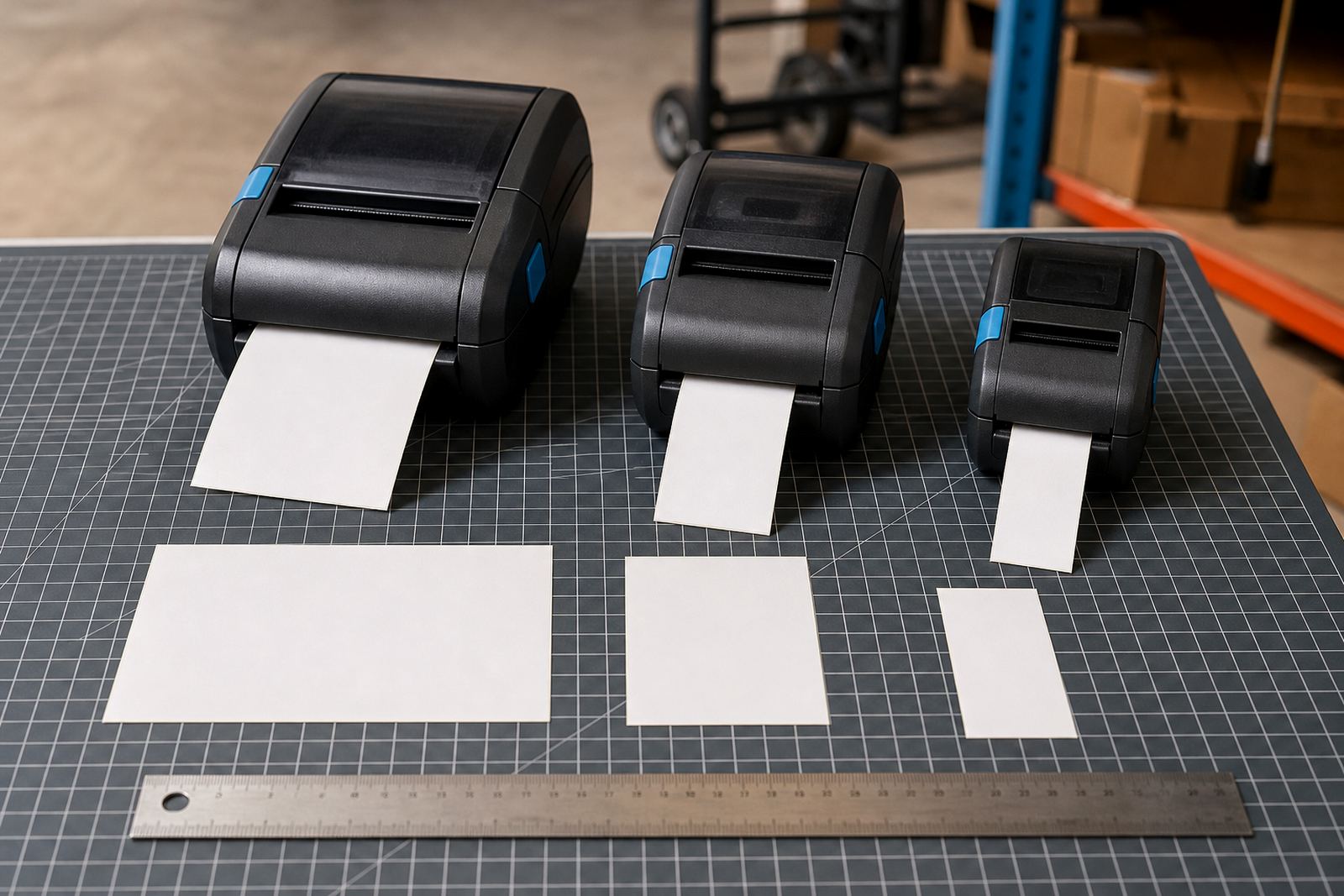
Small label formats work well for shelf edges, small asset tags and compact stock identifiers. Mid-width printers handle the kind of label used by couriers, stores and warehouse picking teams where the printed area carries both a code and a readable line of text. Wider mobile printers are better when the label needs a fuller layout, extra handling room or a larger code that must scan from a little further away.
The best width is not always the largest one. A printer that is too wide for the job can make stock labels look empty or encourage oversized layouts that waste label material. The aim is to line up printer width, label roll size and the space on the item or carton without forcing the operator to improvise each time.
- Small widths suit compact shelf and asset labels.
- Mid-width options suit most warehouse and courier work.
- Wider units help with fuller layouts and larger barcodes.
- Match the roll width to the printer width before training starts.
Battery life, Bluetooth and Wi-Fi pairing in daily use
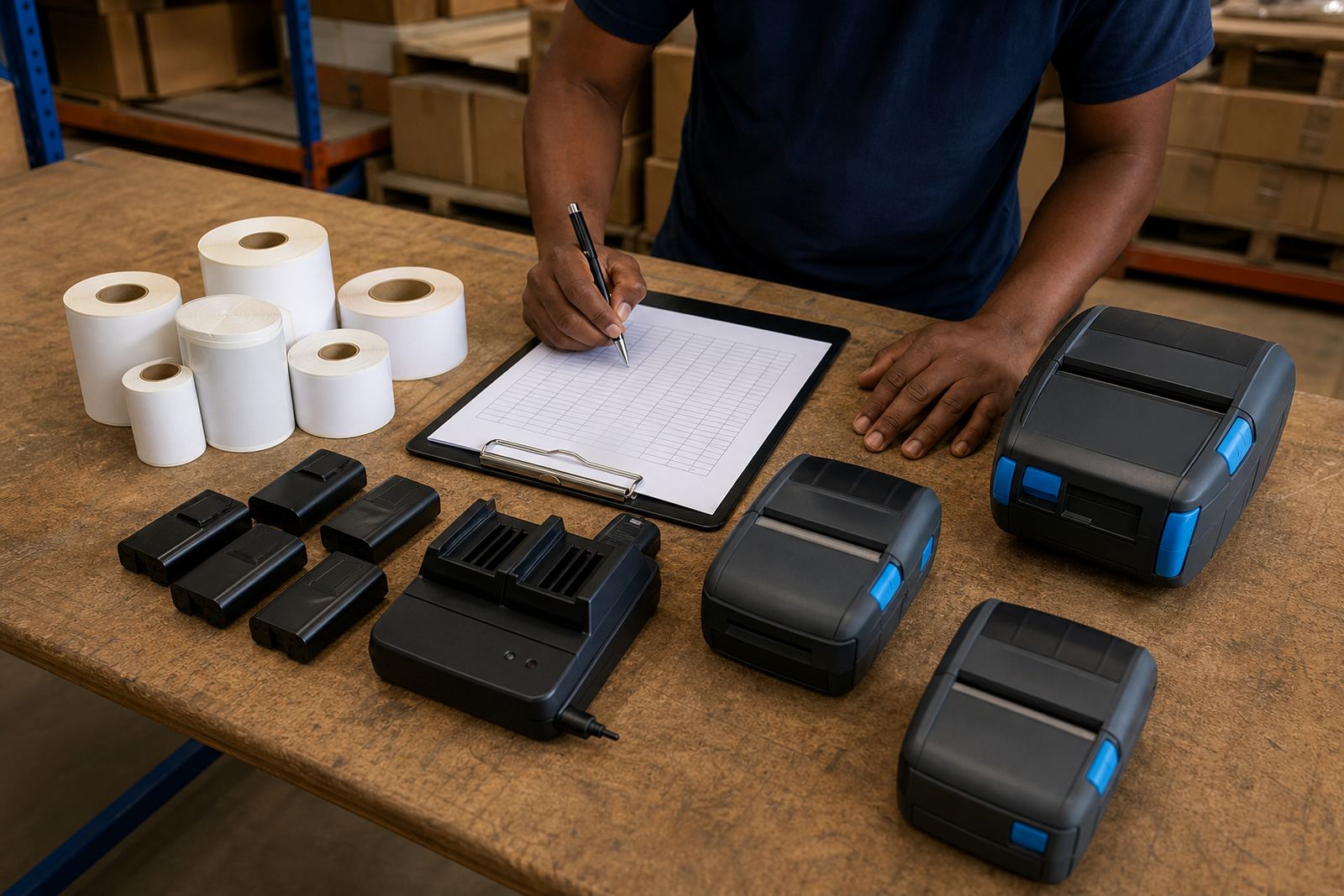
Width affects layout, but the printer still has to work well in the hand. Mobile units need a battery that can carry through a shift of label runs, while Bluetooth and Wi-Fi pairing should be stable enough for the device to stay ready when teams move between packing tables, cages and stock aisles. If the printer is wider and heavier, the battery and clip setup matter even more.
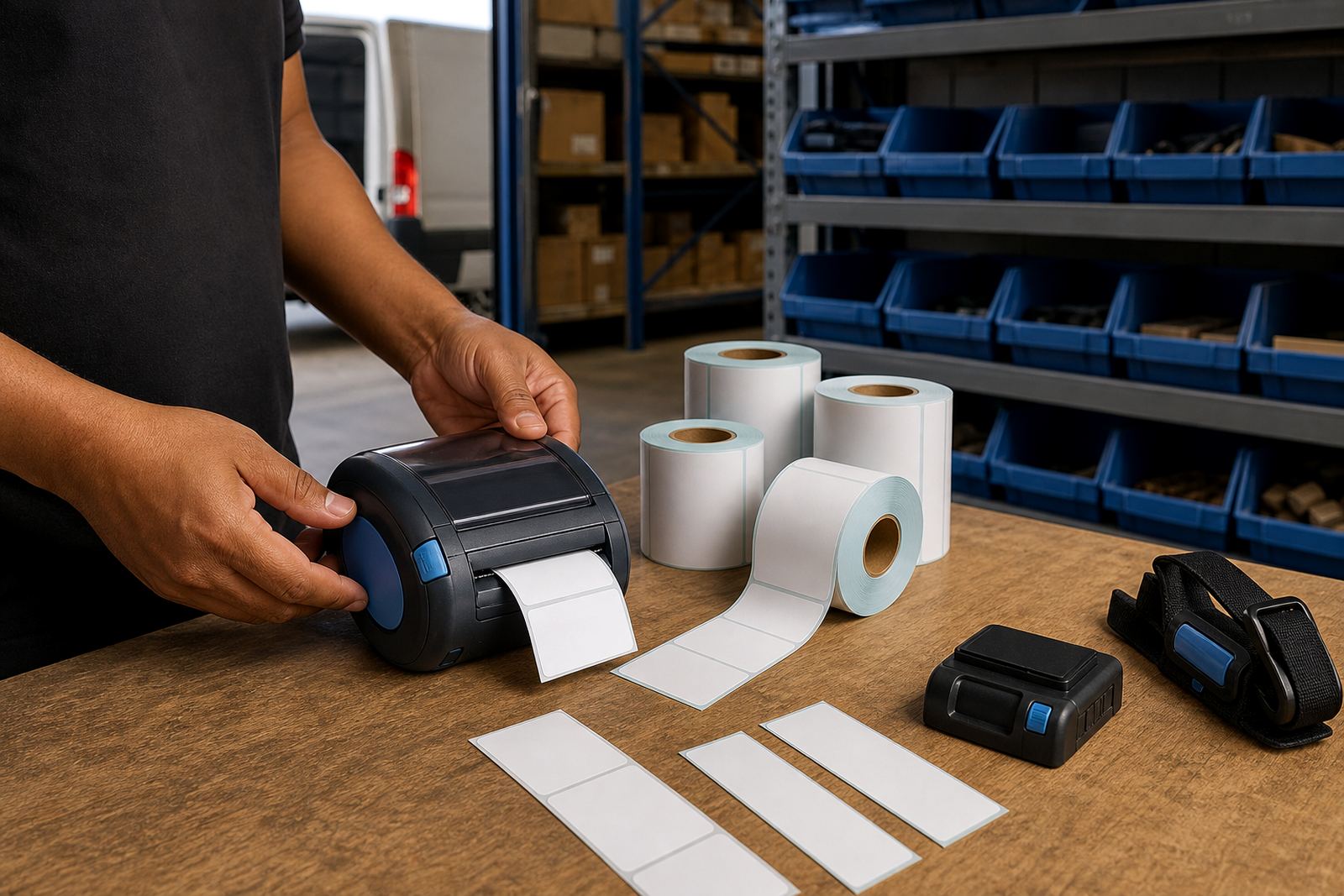
On-site setup often includes pairing the printer to the handheld device, checking label calibration and making sure the first test print lands where it should. A belt clip or battery replacement may sound small, but in daily use it decides whether the printer stays with the operator or gets left on a bench. That is where the width decision meets practical use.
- Check battery condition before roll changes become a habit.
- Test Bluetooth or Wi-Fi in the actual work area.
- Fit the belt clip securely so the printer stays close at hand.
- Use calibration so the label starts in the correct position.
A quick checklist before you settle on width
Before you pick a printer, map the label and the work flow. Measure the label, note the barcode size, and decide whether the same device will also handle QR codes, item descriptions and location text. If the printer will be used across warehouses, couriers and retail stockrooms, the safest choice is usually the width that covers the majority of your labels without forcing constant layout changes.
It also helps to think about upkeep. Printhead cleaning, label jam clearing and preventive servicing keep the device printing cleanly, especially where dust and adhesive build-up can affect line quality. A printer that is the right width but poorly maintained will still give poor results.
- List the three most common label sizes in your operation.
- Check whether one width covers most of those labels.
- Confirm the print area leaves space for the code and text.
- Plan for cleaning and servicing before the print quality drops.
On-site setup when the width decision needs testing
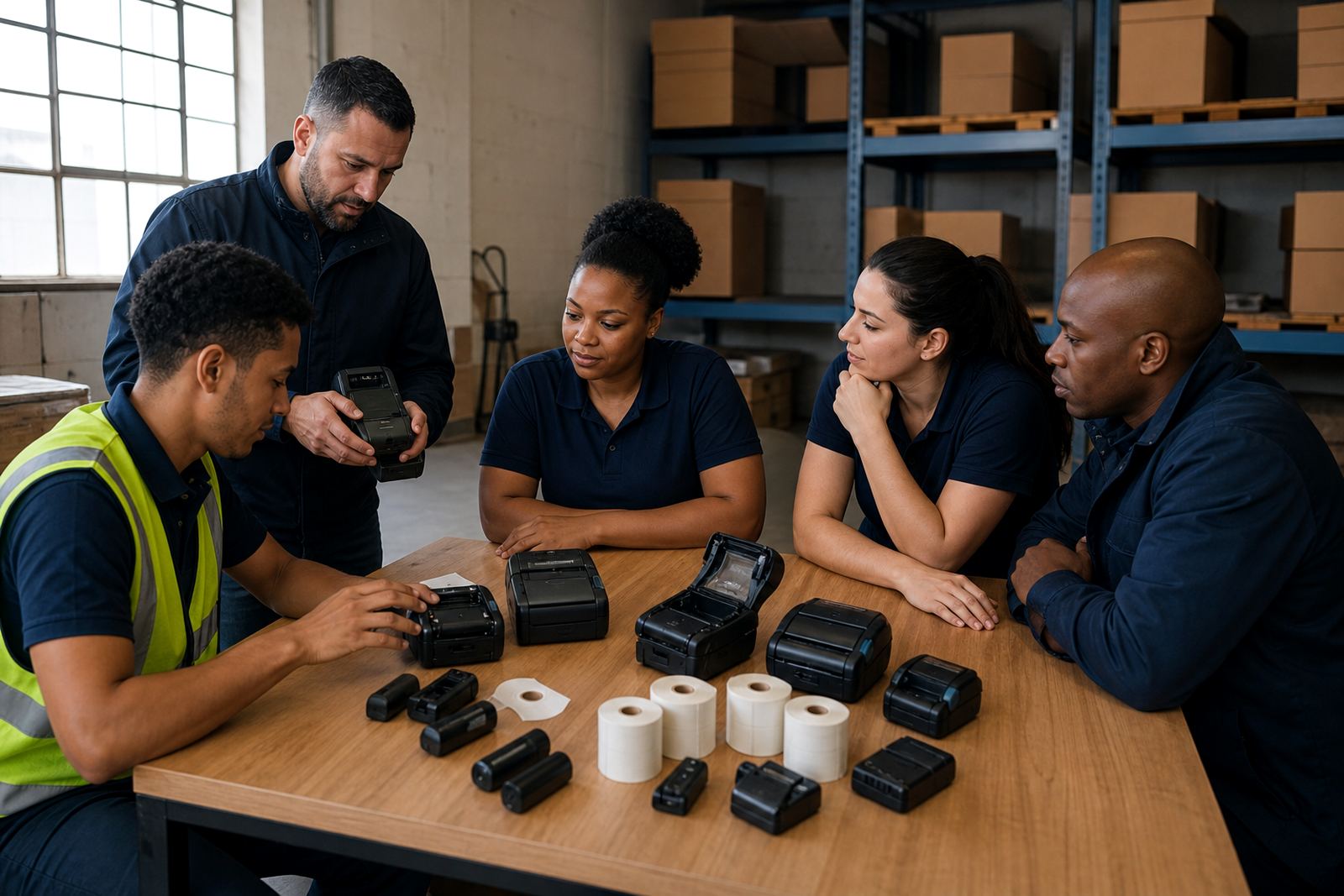
Sometimes the paper specification looks fine until the first live label is printed. That is when on-site setup helps, because the printer can be calibrated against your actual label stock and layout. At Montague Gardens, our team works on mobile label printers, label rolls, battery checks and repairs for Cape Town, Johannesburg, Durban, Pretoria and Gqeberha, with branch and team support for Bellville and Midrand too.
A practical setup can include Bluetooth pairing, Wi-Fi setup, label calibration, operator training and a quick print quality check. If the width is right but the text still sits too close to the edge, the fix may be in the layout settings rather than the hardware. That is usually easier to sort out once the label is printing in the real work area.
- Test the printer with your actual label stock.
- Check the first barcode and QR code scan.
- Look at margins, alignment and text size together.
- Set up cleaning and servicing routines for the team.