Start with the item, not the printer
Begin with the surface you are labelling. A narrow cable tie tag, a retail shelf edge, and a carton label all ask for different dimensions, even when the same mobile printer is in use. The aim is not to fill the page, it is to place enough information in a neat block that scanners and people can read without guessing.
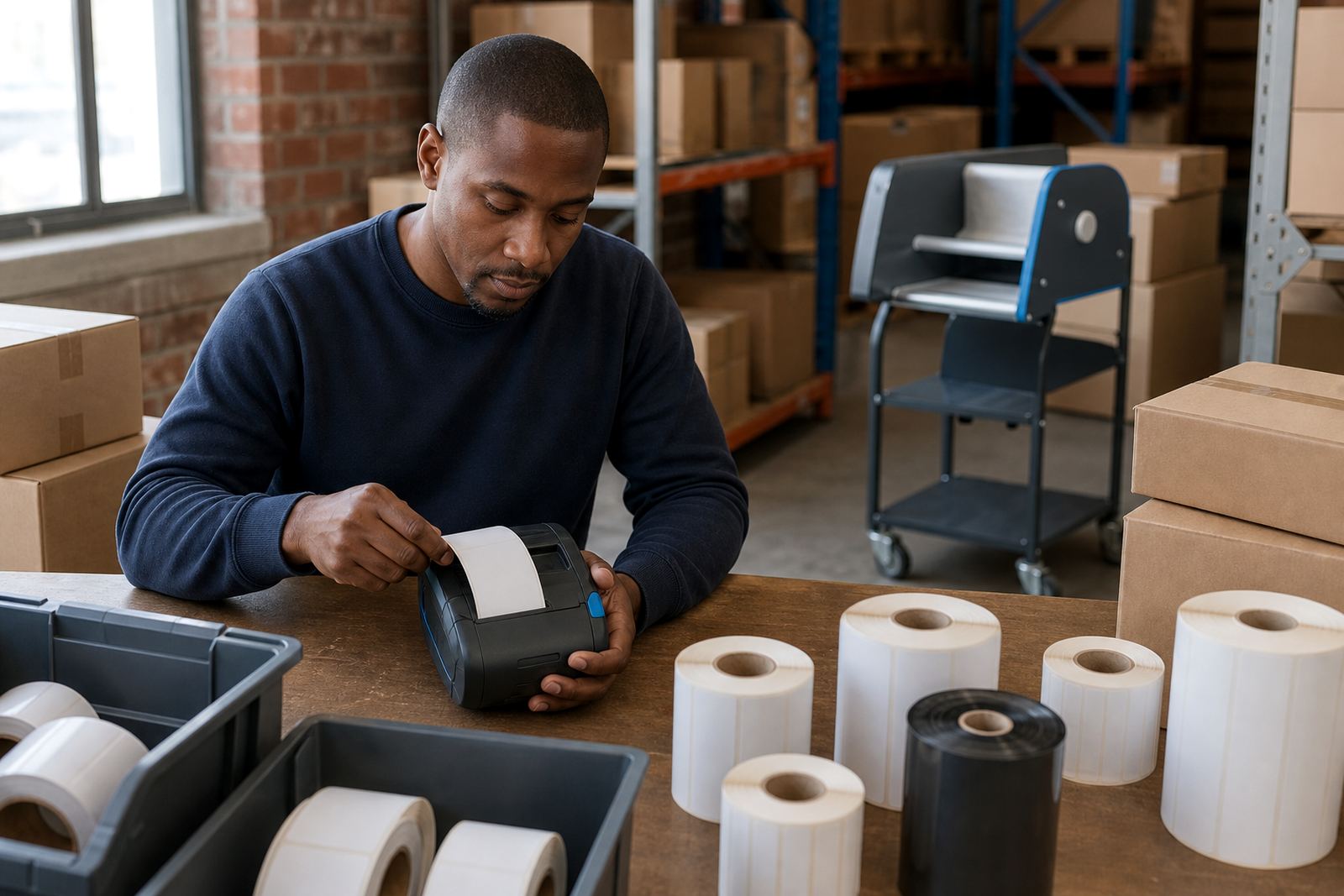
On smaller stock items, a compact label often works better because it stays flat and avoids curling at the edges. On cartons, a wider face gives room for a barcode, item code, batch note and a short description without squeezing the text into a hard-to-read strip.
Use print width as your first filter
Every mobile label printer has a usable print width, and that width sets the upper limit for the label you can run comfortably. If the print area is too tight, the barcode may sit too close to the edge or the text may wrap where you do not want it. Check the working width before you settle on the roll size.
Direct thermal printers are often used for short-life labels and courier work, while thermal transfer suits labels that must hold up better over time or against handling. The chosen print method matters because it changes the kind of roll you should match to the job, especially where rub, sunlight or humidity are part of the day.
- Measure the printable width, not only the outside roll size
- Leave margin at the left and right edges
- Keep text and barcode inside the active print area
- Match the roll format to the printer setting before use
Barcode space needs a bit more room than people expect
A barcode that scans cleanly needs quiet space around it. If the label is too short or too narrow, the bars can crowd the text or the quiet zones can shrink until the scanner struggles. The same applies to QR codes, which need enough square space to hold data without becoming muddy.
If you are printing product codes, batch numbers or location codes, build the label around the code first and the wording second. Human-readable text should sit below or beside the code, not jammed into every spare millimetre. That small gap helps when stock moves fast and a hand-held scanner has only one chance at the label.
- Pick a label size with enough clear space around the code
- Keep QR codes square and uncrowded
- Place the readable text where it does not touch the code
- Test the scan from the angle your team actually uses
Think about the words you need to fit
The amount of text decides more than the label width does. A short SKU and a bin code can live happily on a small roll, but a label with product name, date, lot number and location may need a wider face or a taller layout. If you cram too much into a tight space, the print gets small and the label becomes a squinting exercise.
For retail stockrooms and courier work, keep the wording direct. Use the minimum details that staff need at the point of scanning or dispatch. If you must include more information, increase the label height before you force the font smaller, because a slightly taller label often reads better than a dense narrow one.
Allow for battery life and field use
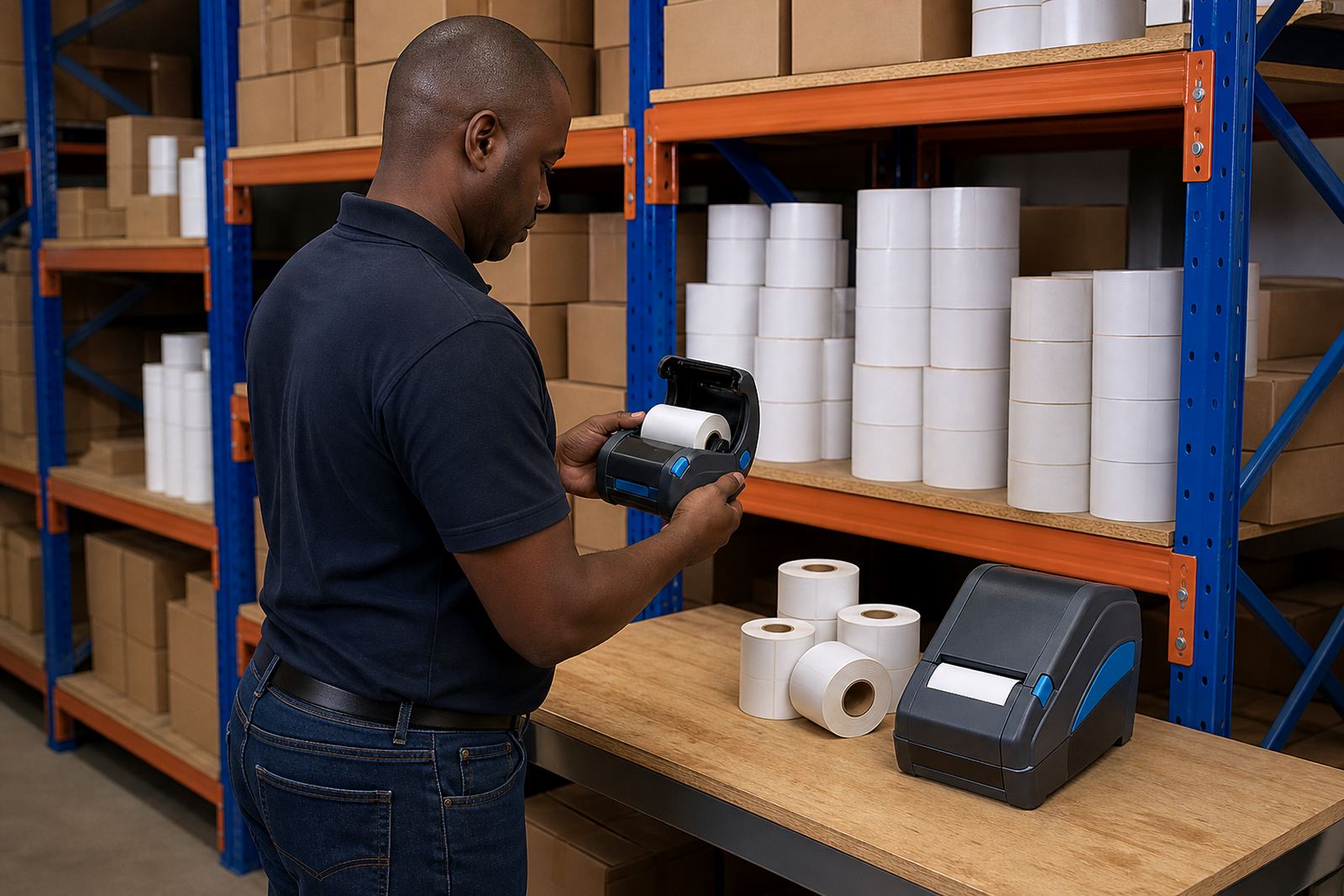
Mobile printers are carried, clipped and used in real movement, not on a fixed bench. Larger labels can mean longer print runs and more demand on the battery, especially when the printer is paired by Bluetooth or Wi-Fi and moving through a busy warehouse. If the label is oversized for the task, you may use more media and waste time trimming around the edges.
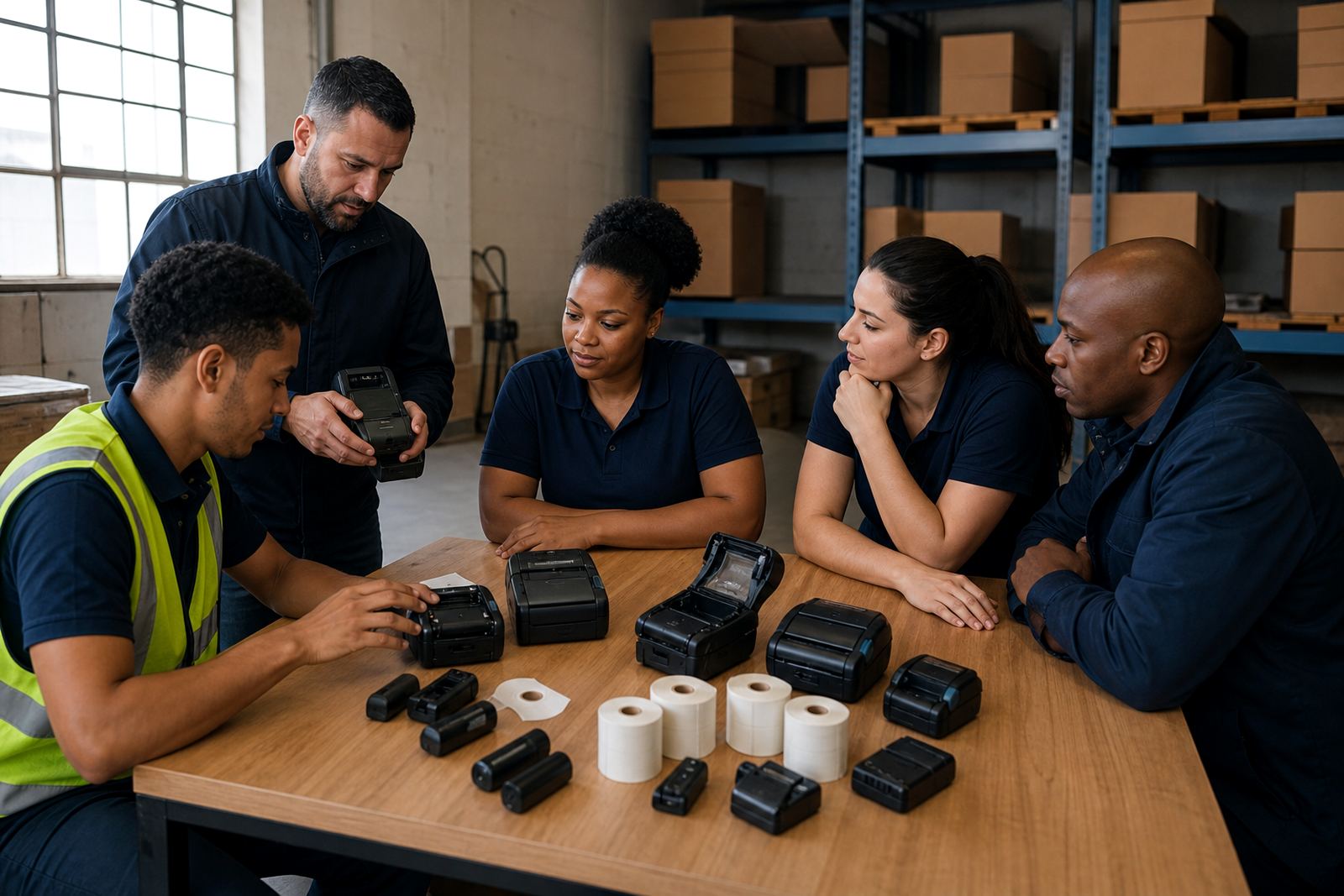
Choose a size that suits the shift pattern and the work area. A compact label can be easier for picking routes and shelf marking, while a wider label may be needed at receiving, dispatch or cycle count stations. Matching the size to the task also reduces jams, because the roll feeds with less strain when the format is sensible.
- Keep spare batteries charged for longer picking runs
- Use belt clips or carry cases where the printer moves often
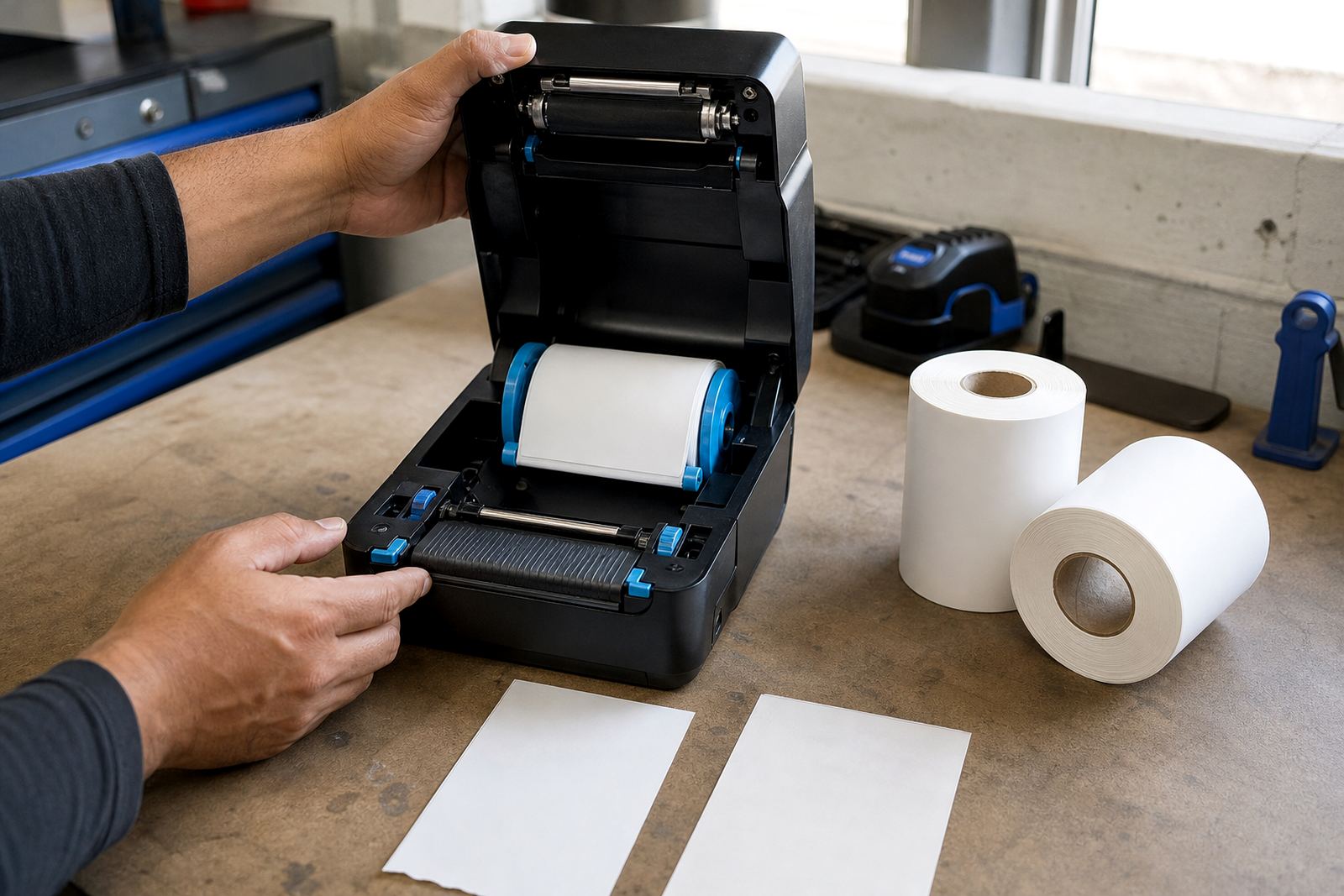
- Check that the roll feeds squarely into the printer
- Avoid label sizes that force unnecessary reprints
Clean printers make size choices easier to trust
Print quality changes when the printhead is dirty, the roller is dusty or the label path has adhesive build-up. Before you blame the size, clean the printhead and check the feed path. A blurred barcode on the wrong label size can look like a sizing issue when it is really a maintenance issue.
A useful habit is to print a test label at the intended size before a full run. Check the edges, the contrast and the spacing around the code. If the print is faint on one side, or the barcode looks stretched, the printer may need calibration before you settle the roll format for the job.
- Clean the printhead before checking label fit
- Clear dust and adhesive from the paper path
- Run a test print at the chosen size
- Confirm that the feed is straight and even