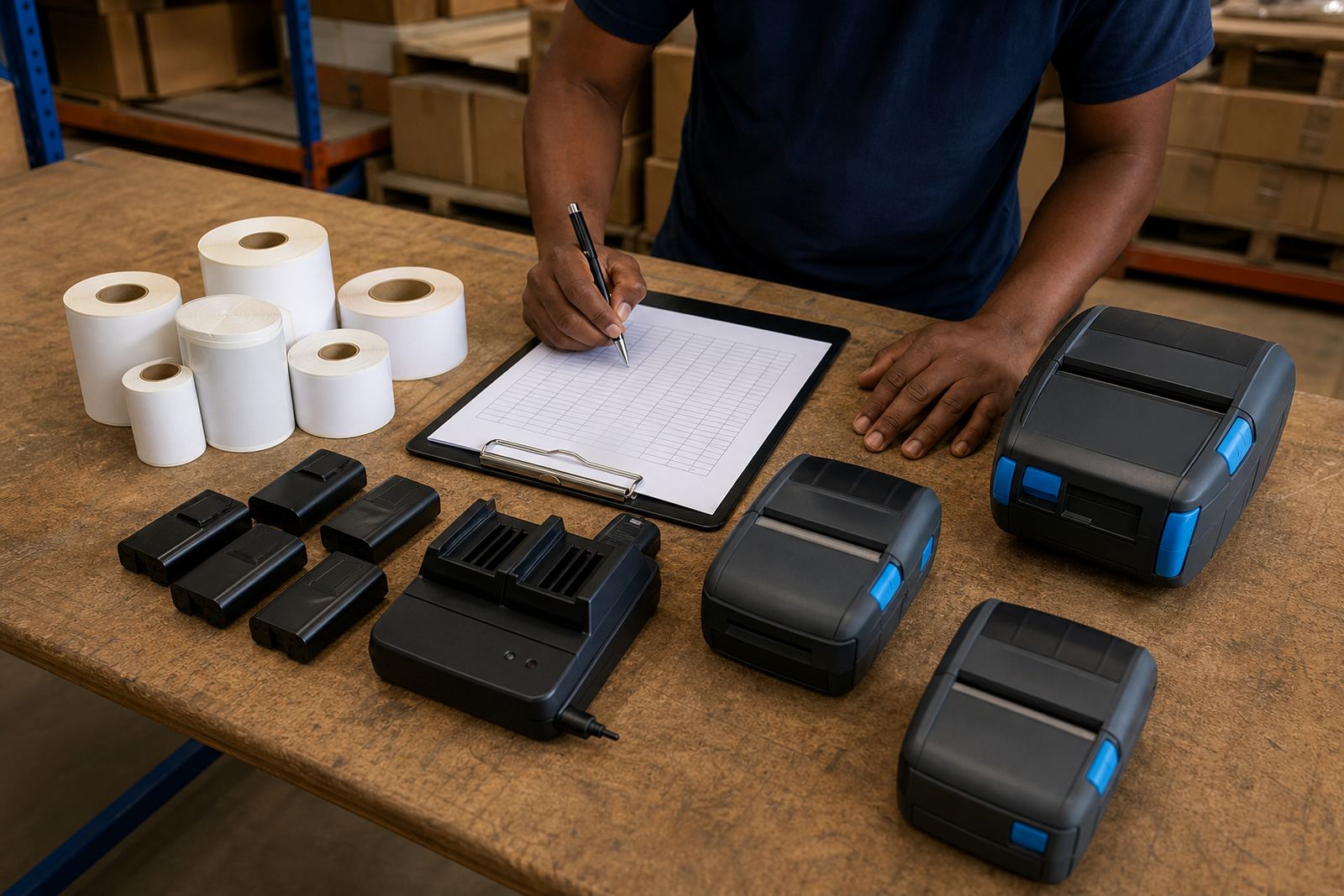
Signs the printhead needs attention
Start with the print result before you touch the printer. Faint bands across text, missing bars in a barcode, or a QR code that scans badly usually point to dirt, adhesive build-up or a worn printhead face.
If the printer has been used with mixed label sizes, the edge of the label roll can also leave dust and paper fibre on the head. That is common on direct thermal units and thermal transfer units alike, especially where labels are changed often during a shift.
- Pale print on one side of the label
- Dark marks that repeat at the same spot
- Barcode lines that break up or blur
- A scratchy feel when labels feed through
Switch off, open up and let it cool
Before cleaning, switch the printer off and remove the battery or power source if the model allows it. Give the head time to cool down, then open the cover and take out the label roll so you can reach the print path properly.
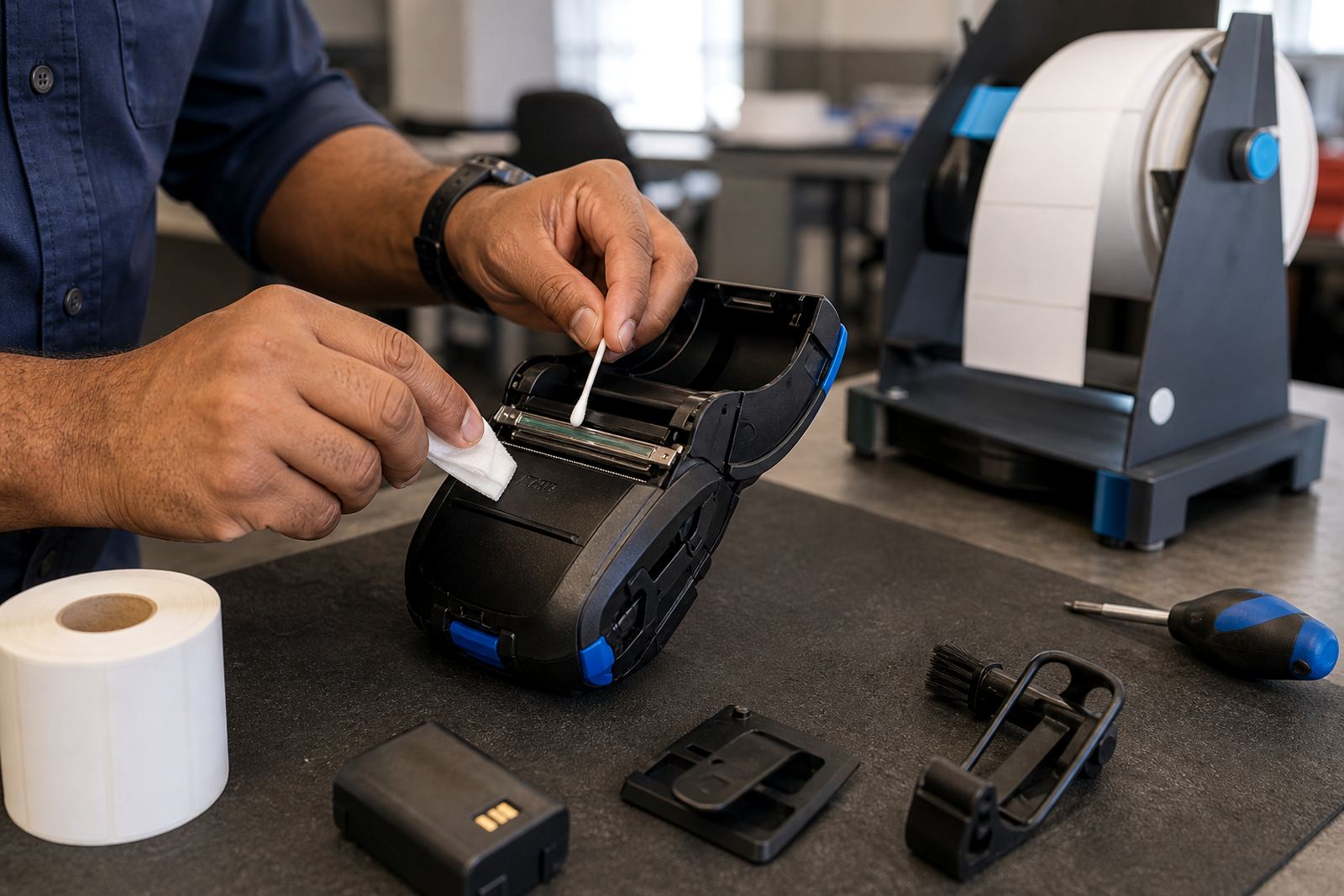
Work on a clean table with lint free cloths and a soft swab. Avoid paper towel because it can leave fibres behind, and do not use sharp tools near the heating strip. A gentle hand helps more than pressure.
- Power down first
- Remove the roll and any loose labels
- Check for torn backing paper
- Keep metal tools away from the head surface
Use the right cleaning method on the head face
The printhead face needs a light touch. Use a swab with a small amount of isopropyl alcohol and wipe across the head in one direction, then let it dry fully before closing the cover. Do not flood the area, because liquid can run into the electronics and the platen roller.
For stubborn adhesive, soften it with a second light wipe rather than scrubbing. On mobile printers, the head is small and close to the platen roller, so one rough pass can do more harm than the dirt itself.
- Use a lint free swab
- Wipe gently across the heating line
- Let the surface dry before loading labels
- Never scrape the head with a blade
Check the platen roller and label path too
A clean printhead still struggles if the roller is shiny with glue or dust. Roll the platen by hand and look for flat spots, cracks or brown marks. If the roller is dirty, clean it with a cloth dampened lightly with alcohol and rotate it as you wipe.
Look through the full paper path for label scraps, loose liner pieces and dust around the sensors. On warehouse and courier printers, a small jam remnant can keep the labels feeding crooked and the print then lands off centre.
- Inspect the roller surface
- Clear bits of torn backing paper
- Check sensor windows for dust
- Make sure the label path is straight
Load labels again and test print quality
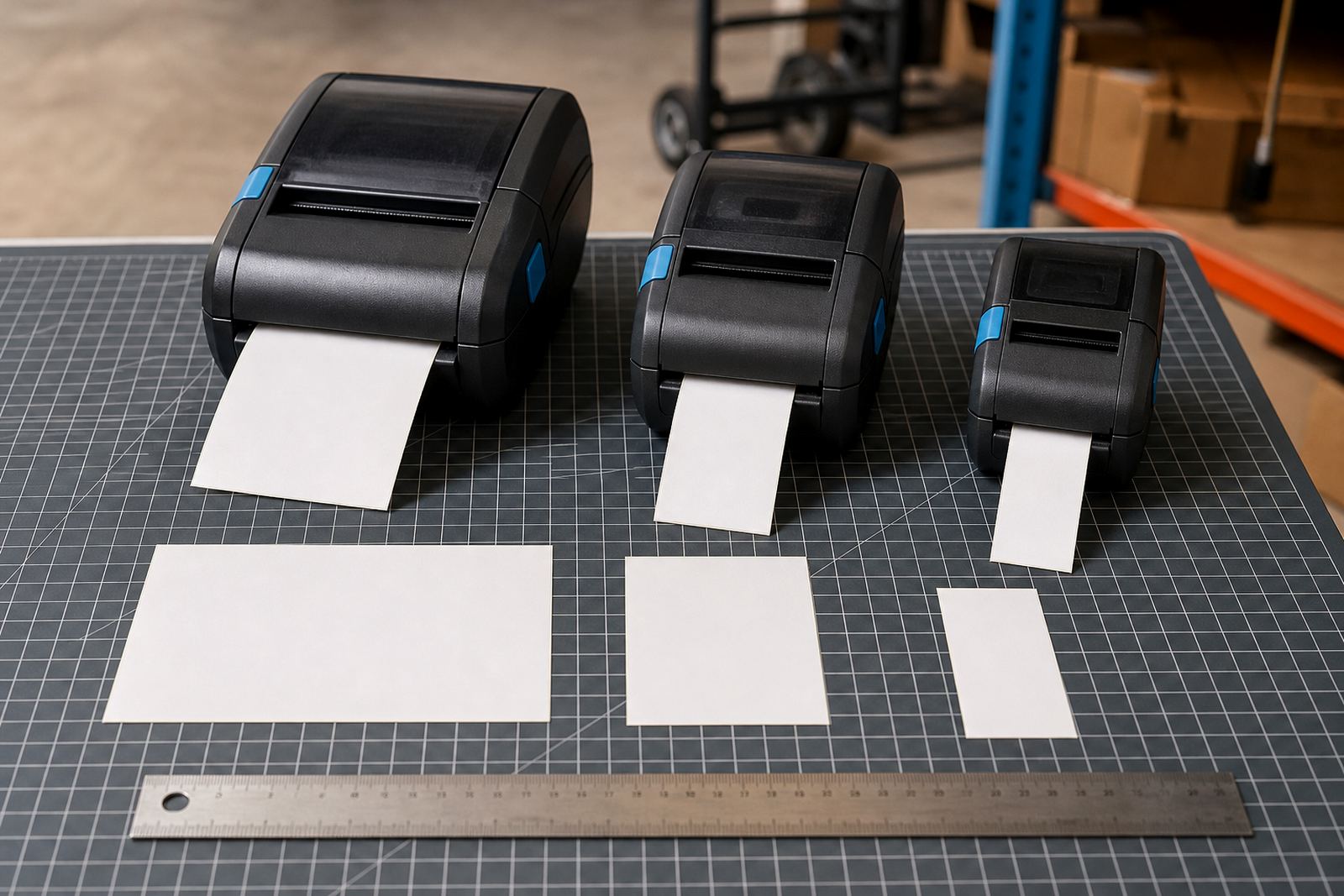
Once everything is dry, reload the label roll carefully and close the cover with even pressure. Check that the roll width matches the printer setting and that the label guides hold the media steady. A mismatch here can make the printhead wear unevenly.
Run a small test label with text, a barcode and a QR code. If the print looks patchy, adjust darkness only a little at a time. Too much heat shortens printhead life and can darken the paper in a way that hides poor alignment.
- Load the roll squarely
- Match the software settings to the label size
- Print a test label after cleaning
- Check scannability before returning it to use
Keep printheads cleaner for longer
Regular care matters more than deep cleaning. Store label rolls in a dry place, keep adhesive dust out of the printer bay and replace damaged rolls that shed paper fibres. For mobile units with Bluetooth or Wi-Fi pairing, the clean working area still matters because these printers often move between vehicles, counters and stockrooms.
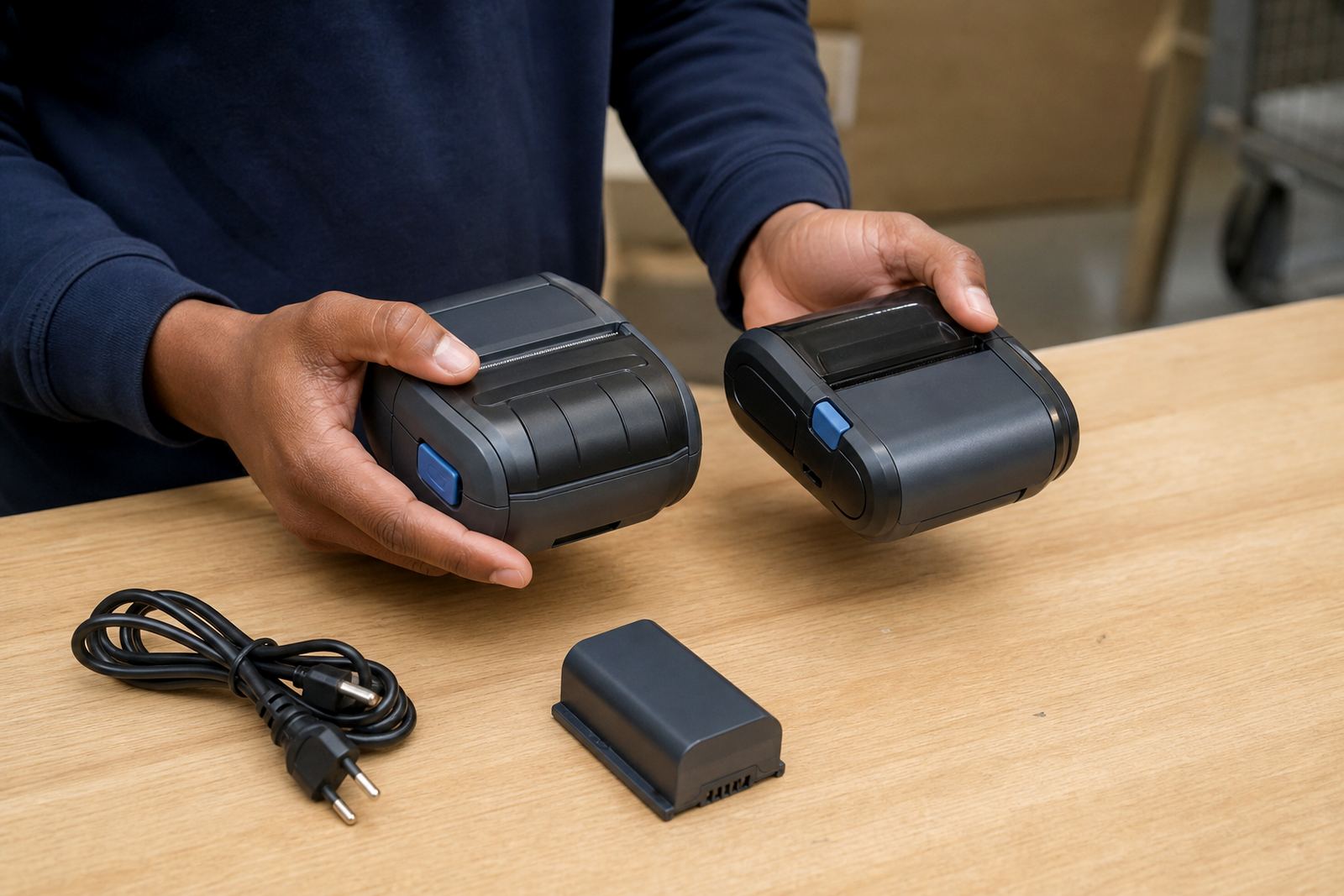
Battery checks also help. A weak battery can cause uneven feeding on some models, which leads to poor print pressure and extra wear. If you notice repeated print faults after cleaning, the head may need inspection, calibration or replacement.
- Keep spare rolls sealed until needed
- Wipe the printer body before loading
- Check batteries and belt clips as part of routine care
- Book inspection if lines keep returning