Start with the label job, not the machine
Before anyone switches the printer on, confirm the label work it must handle. A courier unit may need short shipping labels, while a stockroom printer may need shelf labels, bin labels or barcode labels. That choice affects print width, label size and the type of media you load.
- Measure the label width and height in millimetres.
- Check whether you need direct thermal labels or thermal transfer labels.
- Confirm if the print must carry text only, or also barcode and QR code data.
- Look at the surface the label will stick to, especially on dusty cartons or chilled stock.
Match the printer type to the label stock
Direct thermal printers use heat-sensitive labels and do not need a ribbon. They suit shorter-life labels and fast daily runs. Thermal transfer printers use a ribbon and suit labels that must hold up better under handling, light or abrasion. If the job mixes parcel dispatch and long-life asset labels, the setup needs to match the exact label roll in use.
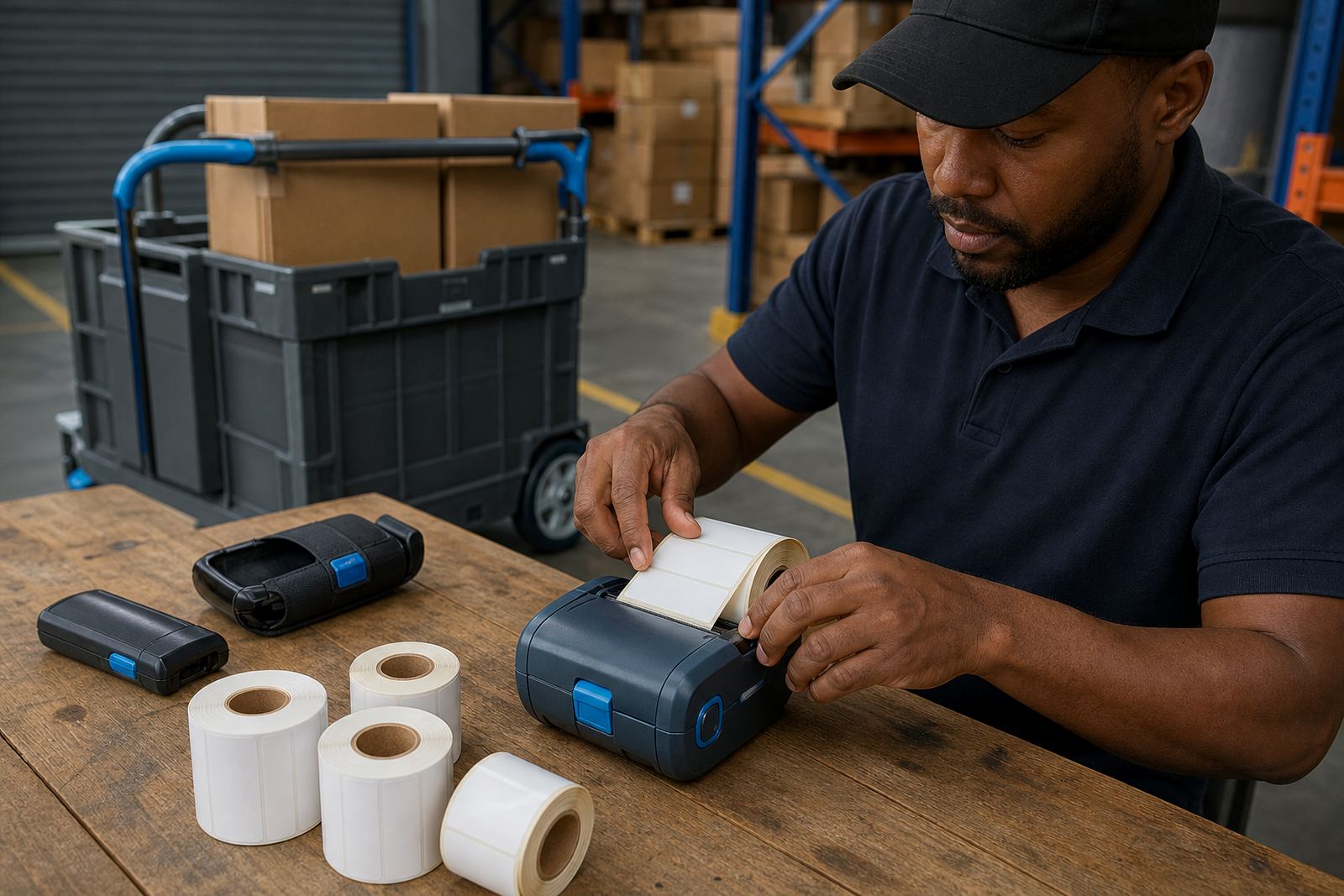
Check the core size, roll diameter and winding direction before fitting anything. A roll that fits loosely can feed badly and throw the calibration off. If the wrong media is loaded, the print may look dark in one area and faint in another.
Pairing checks for Bluetooth and Wi-Fi
Bluetooth pairing is useful for mobile work on the floor, in vehicles or in a receiving bay. Wi-Fi setup helps when the printer must sit on a shared network and receive jobs from more than one user. Either way, the printer name, network settings and device permissions need to be checked before live use.
- Confirm the phone, tablet or scanner can see the printer.
- Check that the correct network is selected and saved.
- Test a short label before sending a batch.
- Keep the printer within range of the linked device during setup.
Battery and belt clip checks before the shift starts
Battery life matters when the printer moves around a warehouse or loading area. A flat battery mid-run can interrupt dispatch and waste labels. Check the charge level, battery seating and contacts before the unit goes out. If the battery shows weak performance, test it under normal use rather than only on standby.
The belt clip also deserves attention. A loose clip can let the printer swing, drop or shift while walking between aisles. Small parts wear out over time, so the clip and battery cover should be inspected together, not as separate jobs.
Calibration and print quality checks that save waste
Once the media is loaded, run a label calibration so the printer reads the gap, black mark or notch correctly. Poor calibration leads to wasted labels, partial prints and barcode faults. After that, print a test label and inspect the text, barcode and QR code from a normal viewing distance and a close one.
- Check that the print is centred on the label.
- Look for faded bars, broken characters or thick dark edges.
- Clean the printhead before blaming the software.
- Keep the platen path free of dust and adhesive build-up.
Cleaning and servicing that should not be skipped
Printheads collect residue from paper dust, adhesive and everyday handling. A clean printhead helps keep the print sharp and cuts down on premature wear. Use the correct cleaning method for the printer type, and do not scrape the head with hard tools. If labels jam often, check the rollers, guides and path alignment as well.
Preventive servicing is worth planning when the printer is used across busy shifts. It is easier to clean a unit, replace a worn battery or fix a belt clip before it fails in the middle of a dispatch run. On-site setup and repairs are useful when the printer must be checked in the actual work area, not only at a counter.