Pairing a mobile printer without the guesswork
Most mobile label printers pair by Bluetooth, while some models also join a Wi-Fi network for shared use or wider coverage. Start with a charged battery, switch the unit on, then open the printer settings on the handheld device or workstation and look for the printer name. If the device asks for a pairing code, use the one shown in the printer manual or on the setup label. When a network connection is used, match the correct SSID and check that the printer is on the same local network as the device sending labels.
Keep the printer close during pairing, especially in stockrooms with steel shelving or thick walls. If the pairing drops out, clear old connections first, then pair again after restarting both devices. A fresh pairing often sorts out odd behaviour where the printer shows as connected but nothing prints.
- Check that Bluetooth is enabled on the sending device.
- Remove any old printer profile before pairing again.
- Use the correct Wi-Fi network and password if the unit supports it.
- Test with a small label before moving to a full batch.
Loading label rolls the right way round
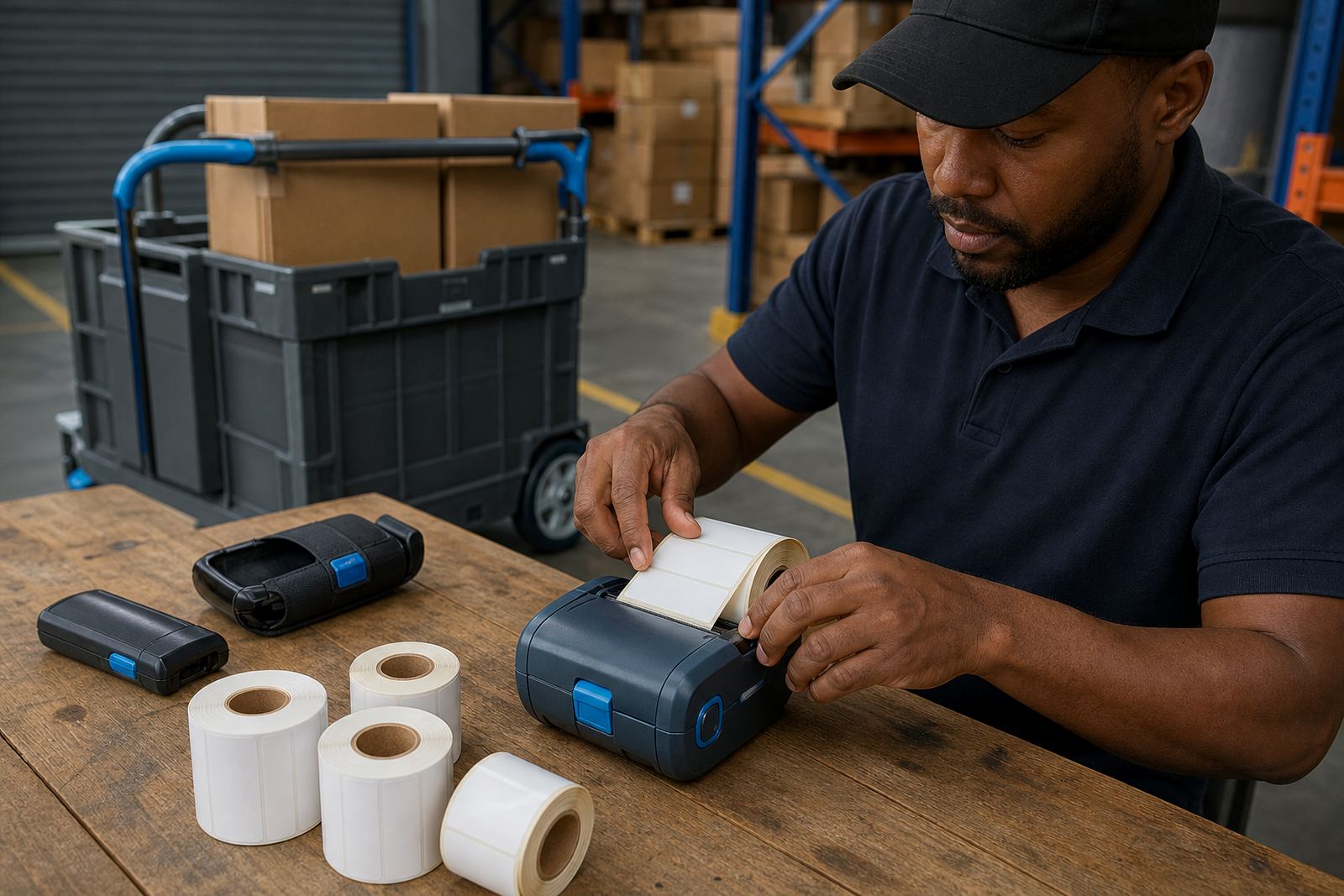
Direct thermal and thermal transfer printers use different media paths, so the roll must match the printer type. Direct thermal labels print on heat-sensitive stock and do not use ribbon. Thermal transfer units need a ribbon as well as the label roll, and the ribbon path has to sit flat with no twists. If the stock is loaded backwards, the printer may feed paper but print faintly or not at all.
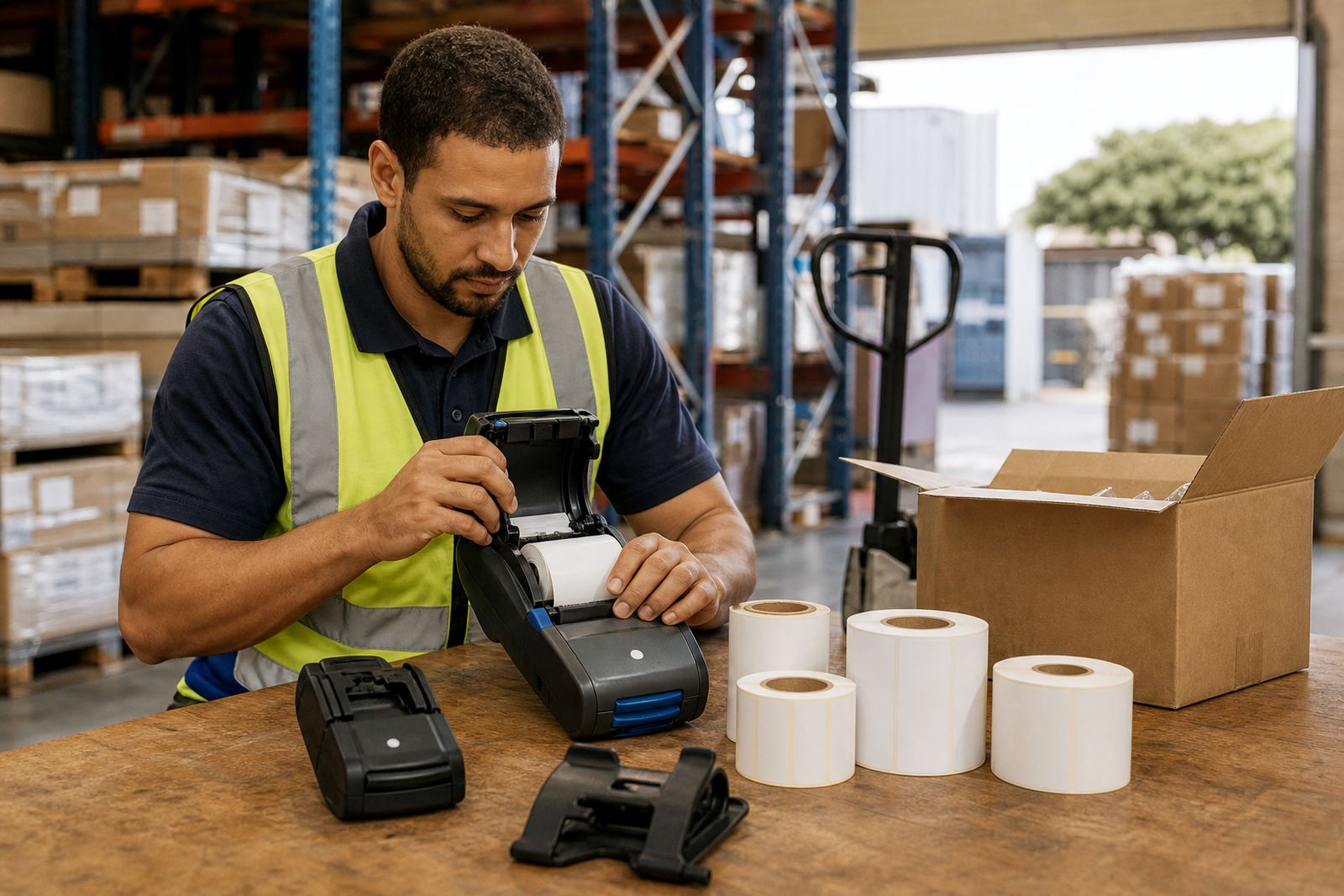
Open the cover, set the guides to the roll width and place the roll so the labels feed from the correct side. Pull a short length through the sensor area and close the cover firmly. For common warehouse jobs, label widths often sit around 50 mm, 60 mm or 100 mm, while smaller item labels may be narrower. Keep the edges clean and dry, because dust and moisture can make the feed rollers slip.
- Match the roll type to the printer technology.
- Set the side guides snug, not tight.
- Feed the labels through the sensor gap before closing the cover.
- Keep rolls in a cool, dry spot away from direct sunlight.
Print width, label size and the barcode check
Mobile label printers are usually built for a set print width, and that width should suit the label size you plan to use. A narrow printer is fine for parcel tags and shelf labels, while wider units are better for carton markings, asset tags and shipping labels with more data. If the label size in the software does not match the actual media, barcodes can shift, text may clip and QR codes can lose clarity.
Before a full run, print one sample with the same layout you plan to use on the floor. Check the margins, barcode edges and QR code blocks under normal lighting. If the print looks too light, too dark or slightly offset, adjust the density setting and run a fresh calibration. A clean first label saves a lot of waste when a batch is already queued.
Battery checks, belt clips and field carry
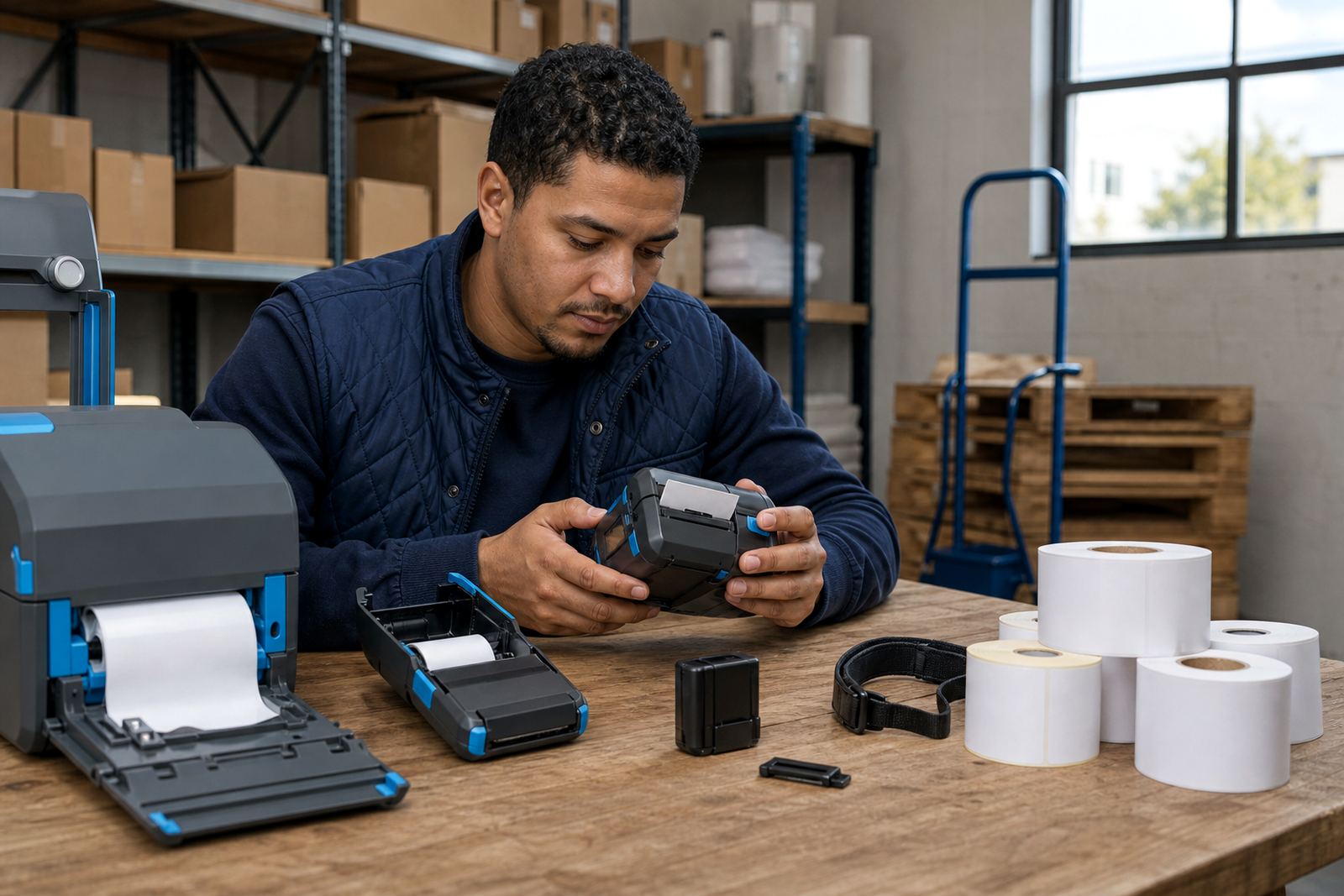
Battery life depends on label size, print density and how often the unit wakes up between jobs. A battery that once held charge well can start to fade if it is overused, stored flat for long periods or exposed to heat in a vehicle or storeroom. Keep an eye on charging behaviour too. If the battery drains too fast or the printer shuts down under load, the pack may need testing or replacement.
Belt clips matter more than many teams expect, because a loose clip turns a light mobile printer into a nuisance during picking rounds. Check the clip mount, the latch and the way the printer sits against the body. If the clip is cracked, bent or missing screws, the unit can slip off a belt or trolley hook. That kind of small failure often shows up on busy days when the team is already moving fast.
When the print looks faded, patchy or skewed
Print quality issues usually start with a dirty printhead, a poorly loaded roll or worn rollers. Turn the printer off, let it cool, then wipe the printhead gently with a lint-free cloth and suitable cleaning fluid. Do not scrape the head with metal tools or rough paper. If a label jam has happened, remove any torn backing, check the feed path and make sure the next roll sits square.
Skewed printing can point to a misaligned label guide or a calibration issue. Light, streaky output often means the printhead needs cleaning, while dark patches can come from debris or pressure points inside the cover. If the problem returns after cleaning and recalibration, the unit may need a technician to inspect the rollers, sensors or head assembly.
- Clean the printhead with the printer off and cooled down.
- Clear torn label backing from the feed path.
- Recalibrate after changing label size or stock type.
- Inspect rollers for wear if labels keep drifting sideways.
On-site setup for Cape Town and beyond
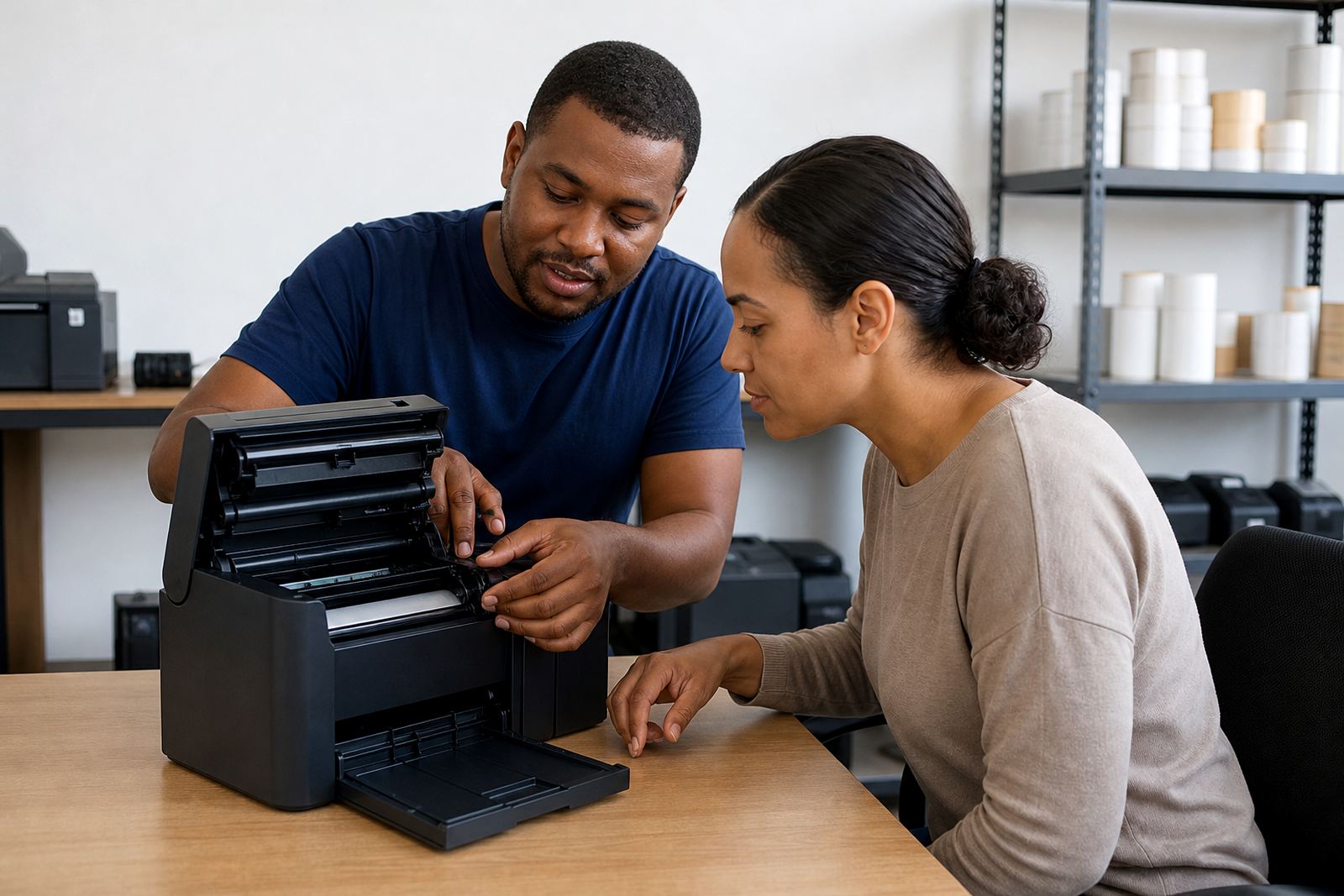
On-site setup helps when a warehouse, courier hub or retail stockroom needs more than a box drop. That includes Bluetooth pairing, Wi-Fi setup, label calibration, operator training and checks on the media path before the printer goes into regular use. It also helps when teams are moving between sites in Montague Gardens, Bellville, Midrand, Johannesburg, Durban, Pretoria or Gqeberha and need the same setup rules followed in each place.
Preventive servicing keeps small faults from turning into lost labels and stalled picking. A practical service visit can cover printhead cleaning, battery testing, battery replacement, belt clip repair and label jam clearing. If the printer is producing labels but they do not match the job sheet, the problem is often in the setup rather than the hardware. That is where a careful reset and fresh calibration makes the difference.
Clients contact us through the enquiry form on our contact page when they need support details, setup help or a service visit planned around the work floor.