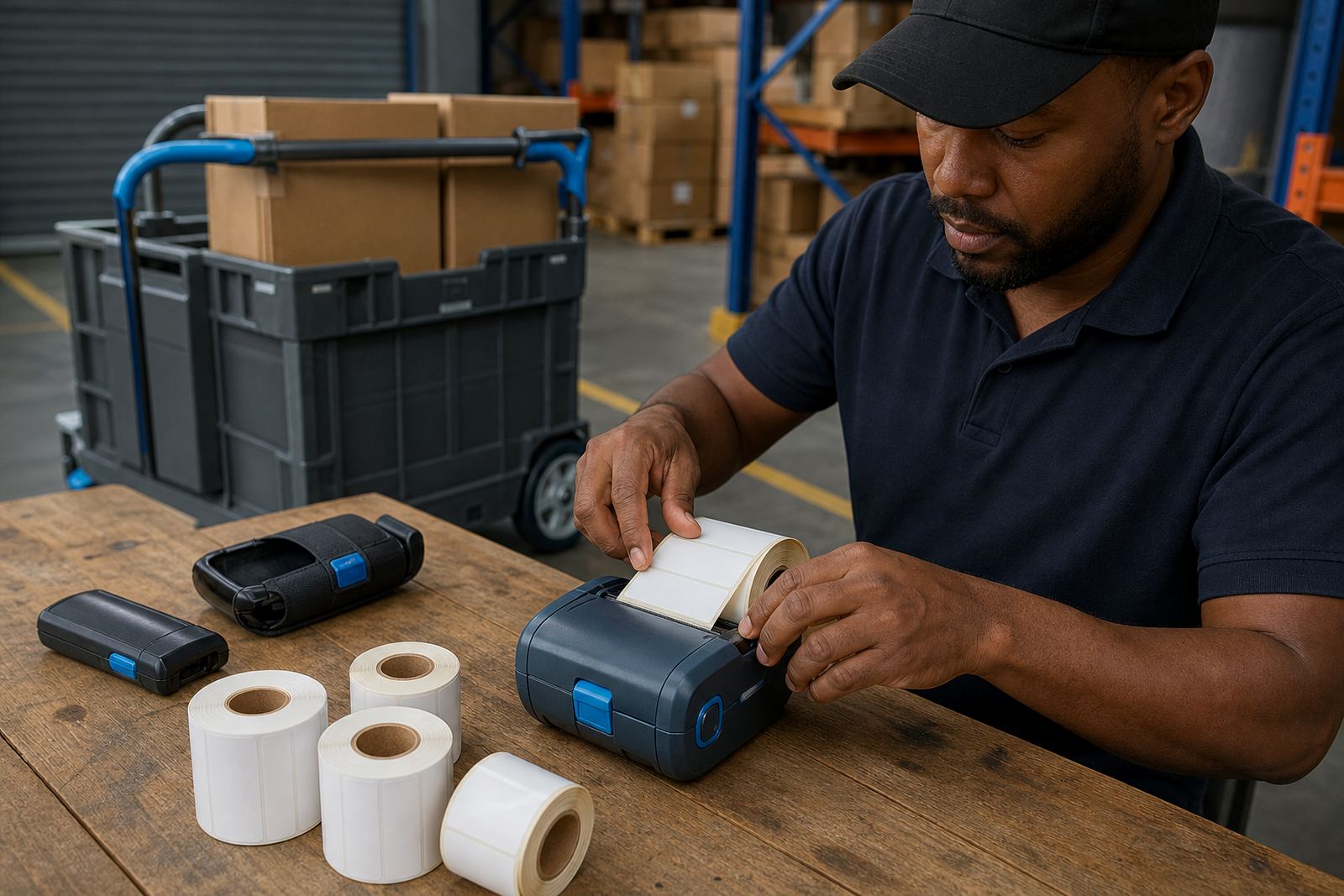
Start with the printer cool and the roll removed
Switch the unit off first, then open the cover and lift out the label roll. Work on a clean table, not inside a dusty stockroom aisle where bits of cardboard cling to the platen and guide rails. If the printer has just been used for a long run, let the printhead cool for a few minutes before touching it.
Use a soft lint free cloth or foam swab with isopropyl alcohol, then wipe the printhead gently in one direction. Do not scrape the heating line, press hard on the element, or use water. A dirty printhead often shows up as pale bars, broken text, missing barcode lines, or one side of the label printing darker than the other.
- Open the cover fully before cleaning.
- Remove loose dust from the media path.
- Use light pressure on the printhead only.
- Let alcohol dry before reloading the roll.
Check the platen roller and label path for sticky residue
The platen roller pulls the label through the printer. If adhesive builds up on that roller, the feed starts slipping and labels can drift, skew or stop short. Clean the roller with a cloth dampened with alcohol and rotate it by hand so every section gets attention.
Look along the full label path for torn backing paper, dust, tiny label corners and dried glue. In warehouses and couriers, that residue often comes from frequent roll changes and labels that shed in the bag or drawer. Keep the inside path clear, because even a small scrap can trigger a jam or a crooked print.
- Inspect the roller for shine, glue and dents.
- Remove paper scraps from corners and guides.
- Check that the label edge feeds straight.
- Replace worn rollers if slipping keeps returning.
Load the right roll for the job
Thermal mobile label printers can use direct thermal labels or thermal transfer labels, and the cleaning routine changes a little with each type. Direct thermal material is more sensitive to heat, sunlight and friction, so dirty rollers and printheads show up faster on the label face. Thermal transfer printing uses a ribbon, which means extra residue can collect around the ribbon path and head if the printer is not kept clean.
Match the label size to the printer setting. A roll that is too wide can rub against the guides, while a narrow roll may wander and print off centre. For barcode and QR work, that drift matters. Clear edges and even pressure help the scanner read the code the first time.
- Use the correct label width for the printer tray.
- Keep labels flat and dry before loading.
- Store spare rolls away from heat and moisture.
- Discard rolls with crushed edges or loose adhesive.
Battery care matters when the printer leaves the charging point
Many mobile printers run on a rechargeable battery, so care is not only about dust and glue. A battery that does not hold charge well can drop voltage mid job, and that can lead to weak print density, half printed labels or repeated pause faults. If the battery compartment is dirty, clean the contacts carefully with a dry cloth first.
Check the battery fit and the belt clip while you are at it. A loose clip lets the unit knock against shelves, cage doors and trolleys, which is rough on the casing and the cover latch. If the battery swells, overheats or feels loose in the cradle, stop using it and arrange a proper replacement.
- Keep contacts clean and dry.
- Test whether the battery still takes a full charge.
- Watch for swelling, heat or poor fit.
- Inspect the belt clip for cracks and loose screws.
Bluetooth, Wi-Fi and calibration need a steady setup
Cleaning helps, but the print job still needs correct setup. If the printer is paired over Bluetooth or joined to Wi-Fi, a poor connection can look like a print fault when the real issue is a shaky link or an old profile. After cleaning, check that the label calibration still matches the roll size and the gap sensor is reading properly.
When a printer skips labels, starts in the wrong spot or leaves blank areas, run a fresh calibration before changing settings at random. In busy stockrooms, people often swap roll types without resetting the printer. That is when the feeds and print position begin to wander.
- Reconnect Bluetooth only after the cover is shut properly.
- Confirm Wi-Fi settings after any move or service.
- Run calibration when roll size changes.
- Test one sample label before starting a batch.
When the print looks faded or patchy
Faded print can come from a dirty head, low battery power, wrong heat settings or labels that are not suited to the job. Start with the cleaning steps, then print a test label with a plain block, a barcode and a QR code. That makes it simpler to tell whether the problem is physical or electronic.
If the same pale line appears in the same place on every label, the printhead may have a damaged heating point. If the print darkens on one side only, the head may need alignment or the media path may be uneven. Preventive servicing helps catch that before a shift starts losing labels.
For teams in Montague Gardens, Bellville, Midrand or any other branch area, our contact form is the right place to request on-site setup, repairs or operator training when cleaning no longer clears the fault.