The sensor decides where each label begins
A mobile label printer does not guess where one label ends and the next begins. It reads the label stock through a sensor, then uses that signal to place the print image in the right spot. If the sensor reading is off, labels can drift, print across two labels, or leave a blank strip at the front.
In warehouses and courier lanes, that error shows up fast. A parcel label that prints too low can cover the tear line. A shelf tag that prints too high can cut off a barcode. Sensor calibration is the small setting that keeps the roll moving in step with the print job.
Gap, black mark and notch stock behave differently
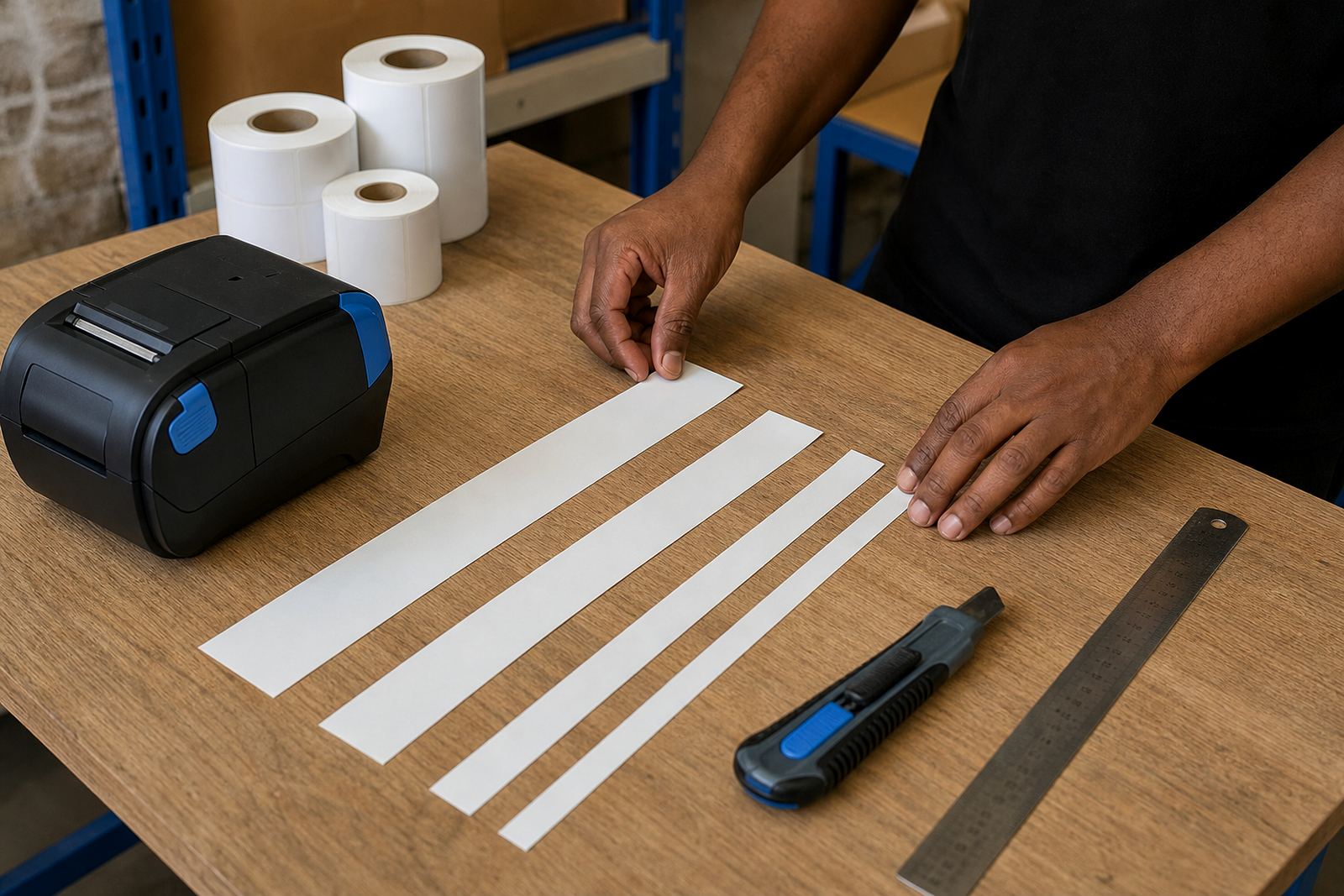
Not every label roll works the same way. Some rolls use a clear gap between labels, some use a black mark on the backer, and some use a notch or cut-out. The printer needs the right detection mode for the stock in the tray. If the wrong mode is selected, the printer may feed too much label or stop short.
- Gap sensing reads the space between labels.
- Black mark sensing looks for a printed marker on the backing.
- Notch sensing tracks a cut-out or die-cut change in the stock.
For direct thermal rolls, the backing and label face are enough for many short-life jobs. Thermal transfer stock may need closer attention because ribbon, label material and sensor position all affect the final result. The printer must be set for the roll in use, not the roll someone used last week.
Signs the printer needs a calibration check
Sensor issues often look like a mechanical fault, but the clues are usually visible on the label. A printer that feeds past the first label edge or stops before the next one often needs calibration before anything else. So does a unit that prints a clean test label but misplaces live jobs from the app or handheld terminal.
- Blank labels appear at the start of a batch.
- Labels print halfway across the backing.
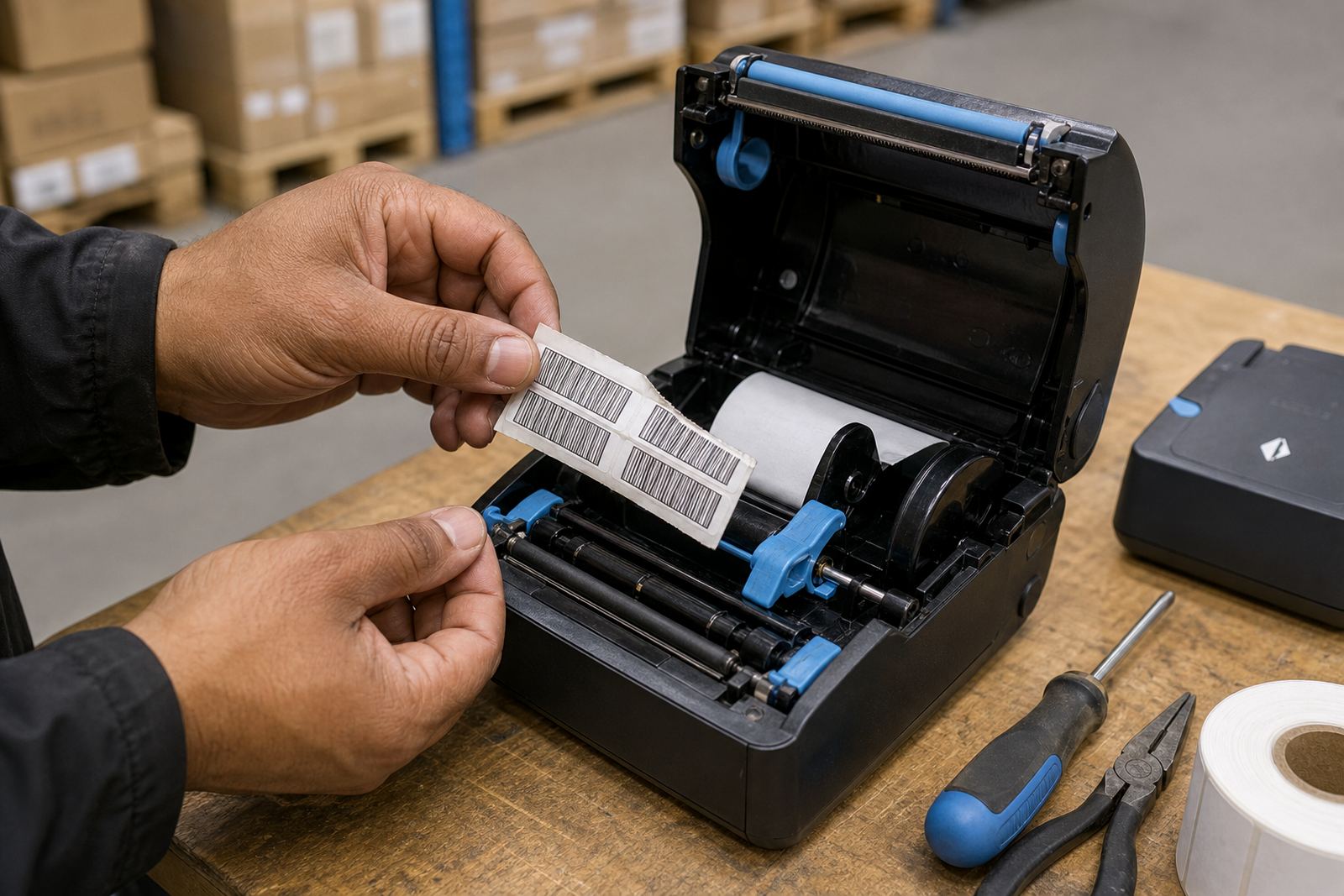
- Barcode bars look clipped at the edge.
- QR codes print off centre or too near the tear line.
- The printer keeps stopping for a media error.
On mobile units, dust from warehouse cartons and label residue build up quickly. A sensor that was fine in the morning can read badly after a few rolls if the path is dirty or the stock has shifted.
A clean path matters before you touch the settings
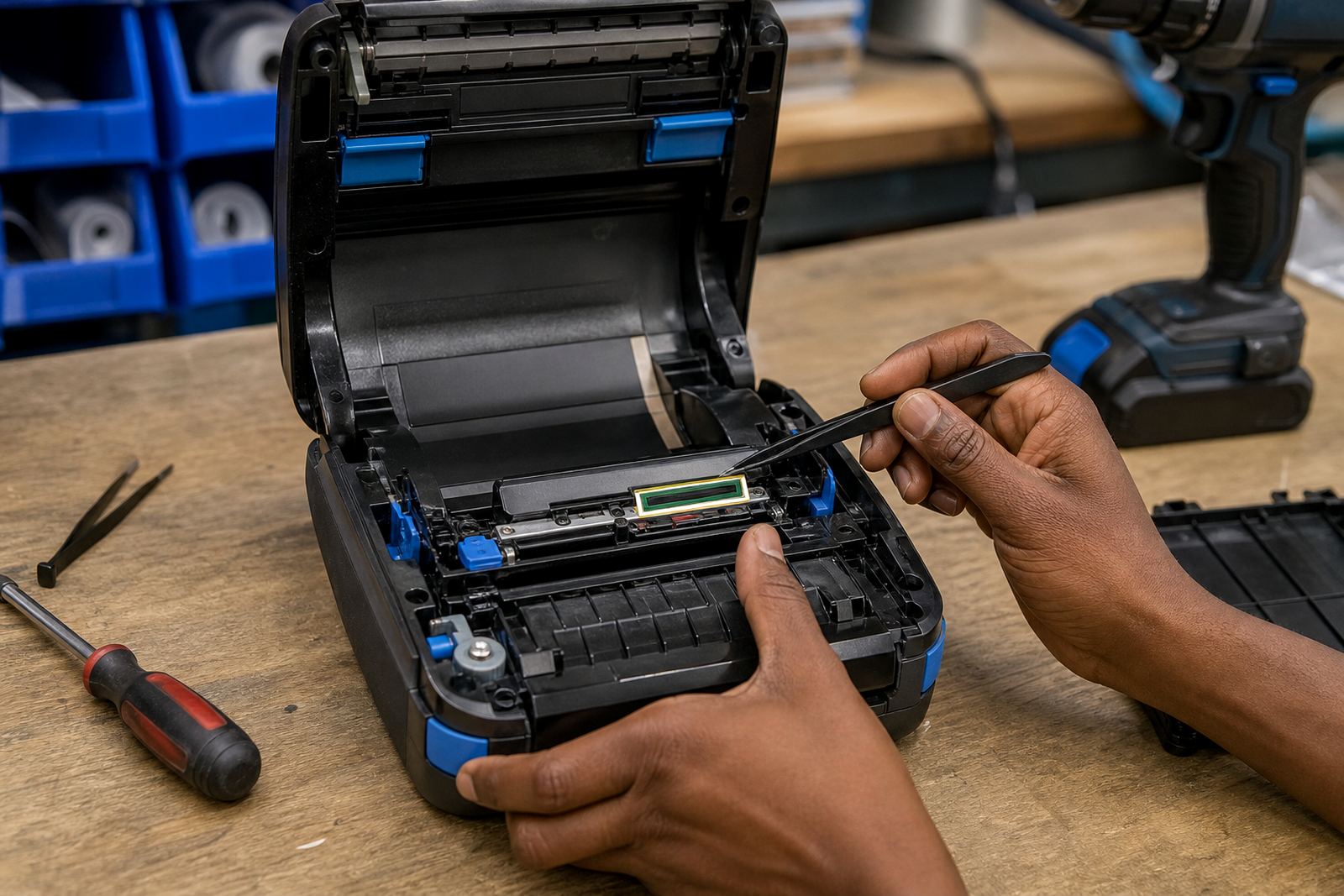
Calibration works better when the printer is clean. Label dust, adhesive fluff and tiny paper fibres can sit on the sensor window and confuse the reading. A quick clean of the media path, platen roller and printhead area often improves the result before any setting is changed.
Printhead cleaning also helps with faint bars and patchy barcodes. When the printhead is dirty, the printer may still sense the label correctly but the image quality falls away. That can make the problem look bigger than it is. In practice, a clean printer is easier to calibrate and easier to trust on a busy shift.
Bluetooth, Wi-Fi and driver settings can throw the result
Sensor calibration is not only about the hardware inside the printer. Bluetooth pairing, Wi-Fi setup and the label file itself can shift the outcome if the wrong stock size or print width is loaded in the app or driver. A mobile unit may be calibrated for a 50 mm label, then sent a file built for 38 mm, and the print lands badly even though the sensor is working.
That is why the setup should match the physical roll and the software settings. Print width, label height, media type and orientation all need to agree. If the job is for a courier label, the barcode area needs enough room. If it is a stockroom asset tag, the printer must keep the text and QR code inside the label edge. A mismatch wastes labels and time.
A Cape Town stockroom example from real use
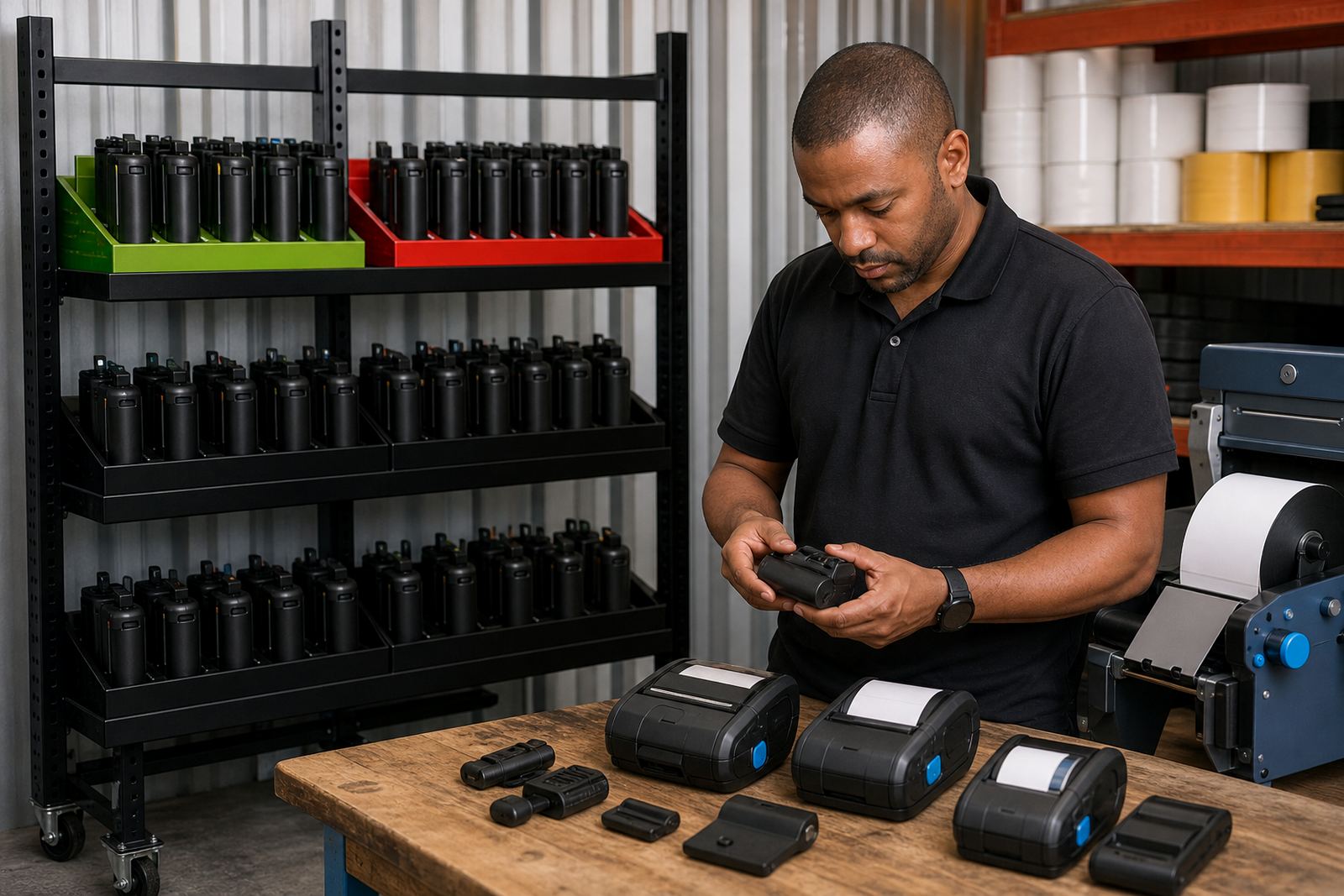
In Montague Gardens, a retail stockroom may run label stock that changes between replenishment bins, shelf tags and receiving labels. One printer can sit in a trolley for receiving, then move to the back aisle for marking stock. If the team swaps from one roll type to another without checking sensor mode, the next batch can start at the wrong point and the operator ends up feeding label after label by hand.
That same issue shows up in Johannesburg and Durban depots where the printer travels with the job. Belt clips, batteries and compact rolls make the unit practical on the floor, but the printer still needs a proper sensor check when the media changes. Field service work usually includes label calibration, battery testing and print quality fixes in the same visit because those faults often sit together.
A short calibration routine that saves labels
When a mobile label printer begins to drift, a calm routine works better than guesswork. Start with the stock type, then check the sensor setting, then print a small test batch before running the full job. If the labels still skip or start in the wrong place, the sensor path may need a deeper clean or a service check.
- Load the correct roll and close the cover firmly.
- Match the sensor mode to the stock type.
- Run a test print with one or two labels.
- Check barcode placement and tear line position.
- Clean the sensor area if the reading still slips.
That routine works well for courier parcels, retail shelf labels and warehouse bin tags. It keeps the printer readable, the label face clean and the operator from wasting a long roll because of one wrong setting.