Start With the Scan Distance, Not the Artwork
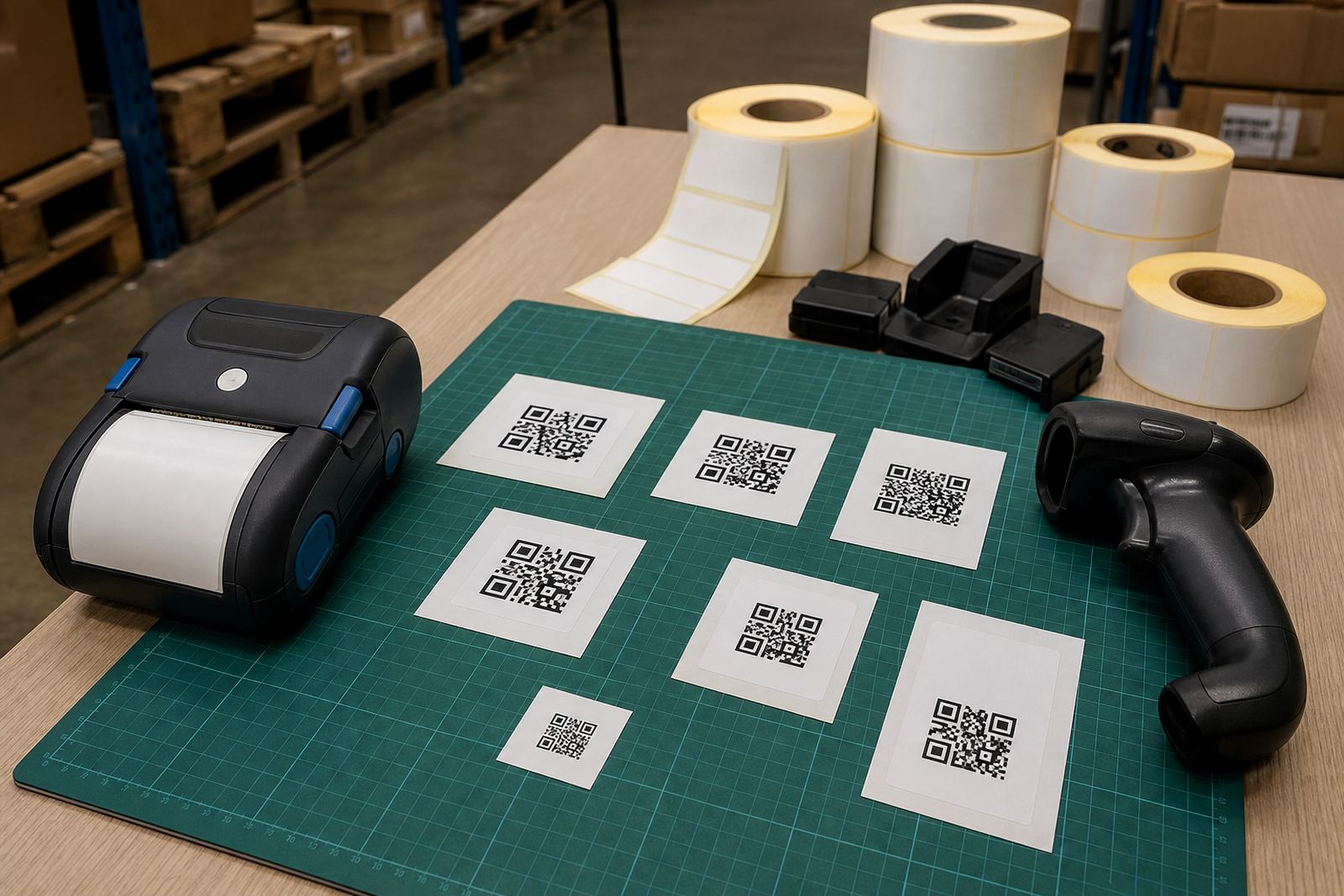
QR code layout should begin with where the label will be read. A handheld scanner at arm’s length needs a different symbol size from a code that will be scanned close to the box. On a mobile printer, the usable print width decides how much room you have for the code, the text and any barcode that sits beside it.
For warehouse work and courier labels, the safest approach is to keep the QR symbol plain and square, with clean edges and enough white space around it. A busy label with too many borders, logos and line boxes often scans worse than a plain layout with a clear code and a few lines of text.
- Match the code size to the closest likely scan distance.
- Keep the QR symbol away from folds, curves and label edges.
- Leave quiet space around the code so the scanner sees the full pattern.
Direct thermal or thermal transfer affects the end result
Thermal mobile label printers can use direct thermal media or thermal transfer media, and the choice affects how a QR code behaves over time. Direct thermal labels are common for short life shipping and stock labels, but heat, friction and sunlight can dull the surface. Thermal transfer prints are better when the label must stay readable for longer, especially on stock that sits in a storeroom or moves through several checkpoints.
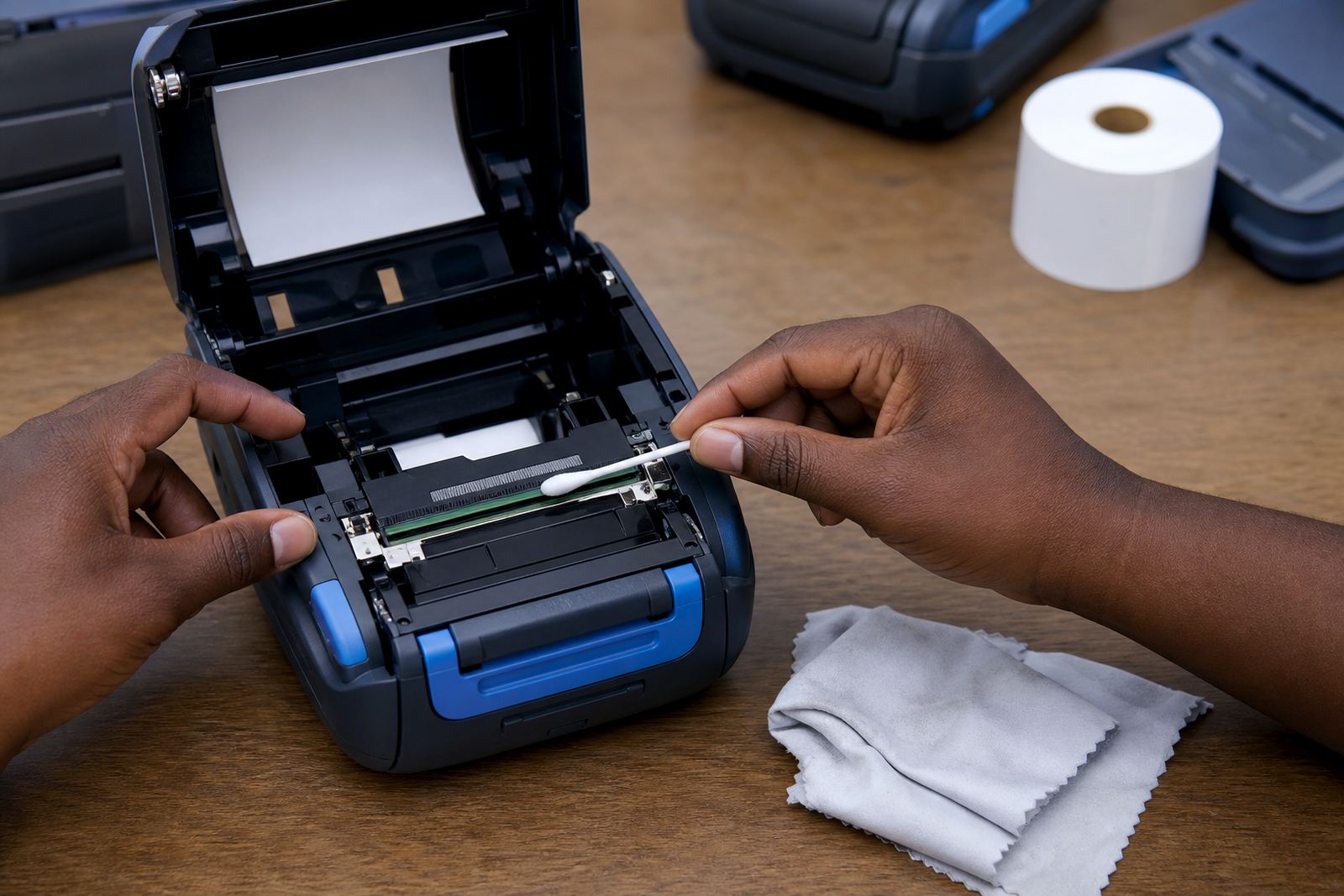
For QR codes, crisp contrast matters more than anything else. If the printhead is dirty, if the ribbon tension is off, or if the roll is not seated properly, the small squares in the code can close up. That is when scanners start missing a code that looked fine on the screen.
- Direct thermal suits routing and dispatch labels meant for short term use.
- Use thermal transfer where the code must last longer.
- Clean the printhead before troubleshooting the label layout itself.
What Fits on 58 mm and 104 mm Print Widths
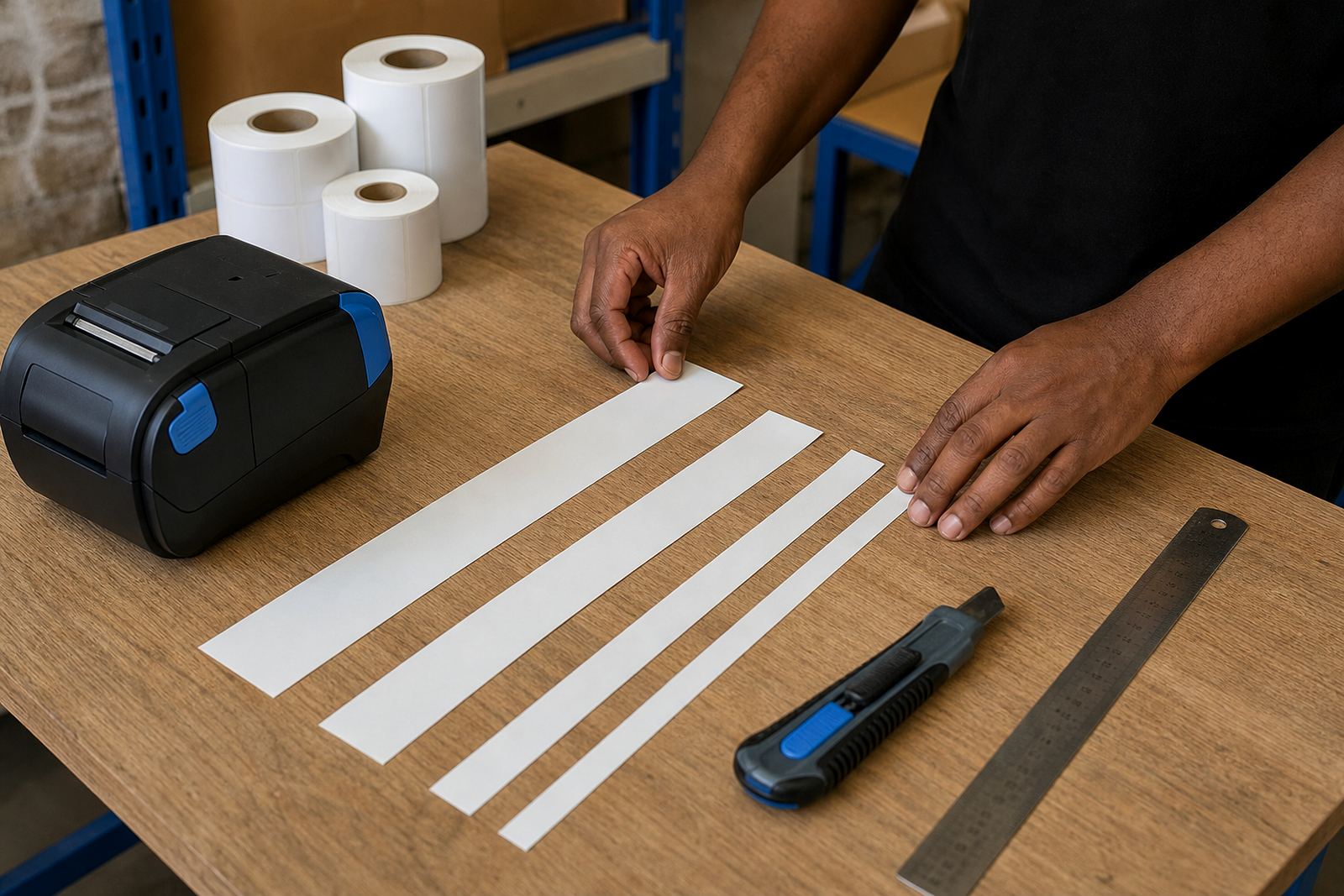
Mobile printers usually live inside a fixed print width, and that width sets the shape of the label. A narrower format can still carry a QR code, but the text has to be trimmed and the margins need to be disciplined. On wider labels, the code can sit beside the item description, batch number and location line without crowding the edge.
In practice, a compact layout works best when the code has enough surrounding white space and the text block is kept short. A long delivery note, a large company name and a tiny QR symbol all fighting for the same strip of label is asking for a reprint. It is better to cut the text to the details that matter for scanning and picking.
- Keep the code square, even when the label is narrow.
- Do not push text too close to the symbol.
- Leave a safe margin on the left and right edges.
Spacing Rules That Stop Bad Scans
A QR code is not just the black squares in the middle. The blank border around it, often called the quiet zone, is part of the readable design. If a label template clips that border, or if another line of print creeps into it, the scanner has to work harder and failures become common.
Spacing also matters when labels are applied to curved crates, small tubes or stock items with uneven surfaces. A code that was perfect on the bench can distort once it wraps around a corner. For that reason, the layout should avoid placing the code too near a fold line, stapled edge or heavy adhesive seam. In Montague Gardens stockrooms we often see labels fail because the layout was squeezed to save space, not because the printer was faulty.
- Protect the quiet zone all the way around the symbol.
- Keep the QR code off folds and label seams.
- Stick a test label on the real carton or shelf first.
Pairing, Calibration and the Small Fixes That Matter
When a mobile printer is paired by Bluetooth or Wi-Fi, the label size and the print settings need to match the media loaded in the tray. If the calibration is off, the code can print slightly too high, too low, or with a cropped edge. For that reason, field setup carries the same weight as the layout itself.
Label calibration, print quality checks and printhead cleaning all feed into the final scan result. Battery strength can matter too, especially on a long picking run where the printer starts strong and then slows as power drops. If the printer is skipping dots or feeding unevenly, the QR code may still look acceptable to the eye yet fail on a scanner.
- Confirm the media size before printing the final roll.
- Run calibration after changing label width or roll type.
- Check battery condition when print quality starts drifting.
Cape Town stockroom example showing the impact
A retail stockroom in Cape Town may need a label that carries a location code, a short item name and a QR symbol for stock movement. If the label is too crowded, staff end up rescanning or typing the code manually, which slows the whole picking flow. A cleaner layout uses a modest QR symbol, short text and enough white space for quick reading.
For couriers moving parcels through Durban, Pretoria or Gqeberha, the same logic applies. A code that scans easily at the dispatch table should still scan after handling, sorting and transit. That means the label stock must suit the job, the printer must be aligned to the media and the code should never be squeezed just to fit extra wording.
Go-Printer works from Montague Gardens and supports mobile label printers, label rolls, on-site setup and repairs across South Africa. That includes Bluetooth pairing, Wi-Fi setup, battery testing, belt clip repair, label jam clearing and print quality fixes, so the label layout and the printer settings can be checked together instead of as separate jobs.
A Quick Layout Check Before You Print the Whole Roll
Before a full run goes out, print a sample and scan it under the same light and the same angle the label will face in use. A QR code that reads fine under bright office light may struggle in a dock area or on a rack in a dim stockroom. The test should also include the actual label size, because a code can look acceptable on screen and still be too tight once it is printed on the roll.
It is worth checking the human-readable text too. If the item name, location code or reference line is too close to the QR symbol, the label becomes busy and the scanner has less room to work. Small adjustments, like moving one line down or trimming an unnecessary word, often solve a recurring scan problem faster than changing the whole template.