Start with the roll, not the printer
Before a roll goes into the printer, check that the media type matches the job. Direct thermal rolls are used for short life labels and shipping work, while thermal transfer labels need a ribbon and suit labels that must hold up better against rubbing, sunlight and handling. If the wrong roll is loaded, the printer may still feed it, but the print can fade, smear or land in the wrong place.
Label size matters as much as media type. A mobile printer usually works best when the roll width matches the approved print width and the label gap is cleanly cut. For warehouse bins, shelf tags and courier labels, staff often use narrow formats on compact printers, so a few millimetres off can affect alignment. That is where careful loading saves time and a lot of waste.
Open the cover and follow the feed path
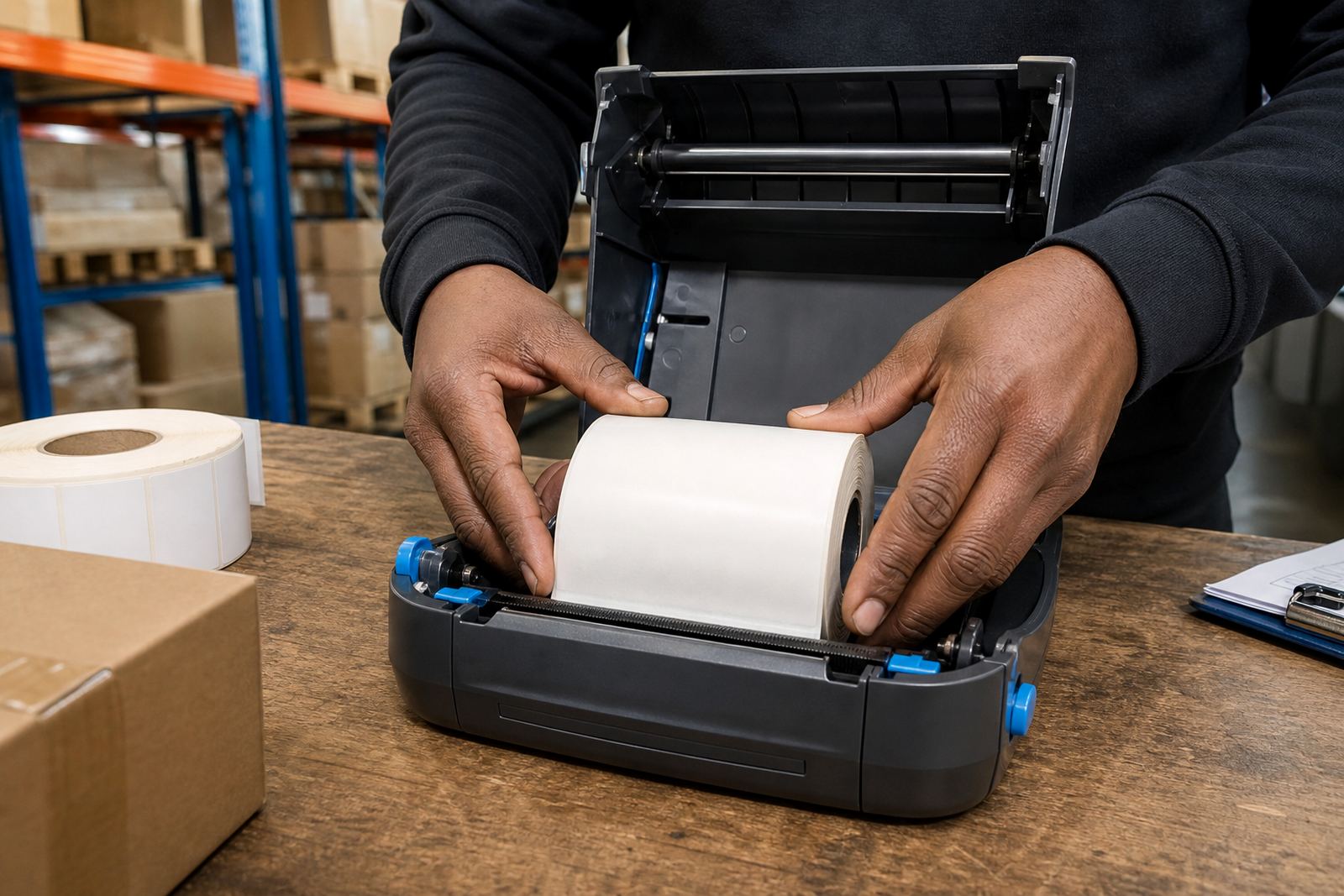
Every mobile label printer has a feed path that wants to be respected. The roll should sit squarely in the guides, the labels should unwind in the right direction, and the leading edge must pass through the sensor path without strain. If the roll sits crooked, the printer can drift, print too high, or stop with the label half out of position.
- Keep the roll centred between the side guides.
- Feed the label edge flat, not twisted.
- Make sure the print side faces the printhead on direct thermal media.
- Do not pack the roll in tightly, it needs to turn freely.
- Close the cover evenly so pressure lands across the width.
In Cape Town warehouses near Montague Gardens, we often see roll loading rushed during pick waves. A label that starts off slightly off-centre can cause the next ten prints to skew, and that means rework at the packing table.
Sensor marks, gaps and the first test print
Once the roll is loaded, the printer still needs to read the label length correctly. Most mobile units rely on a gap sensor or black mark sensing, depending on the stock. If the sensor cannot detect the gap, labels may advance too far or not far enough. That is where calibration matters, especially after changing from one label size to another.
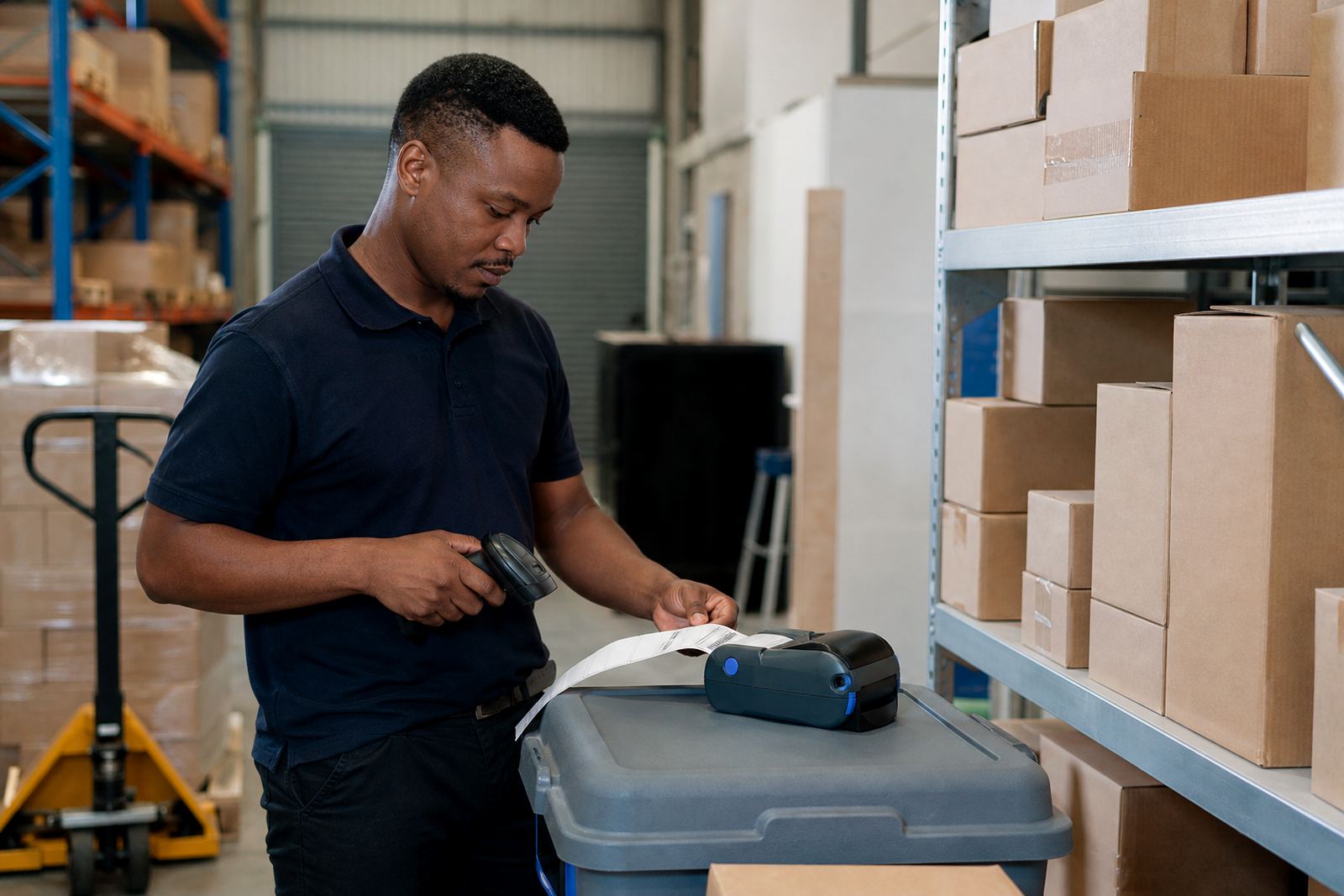
A good first test print tells you plenty. The barcode should sit straight, the QR code should be crisp, and the text should not drift into the edge. If the output looks light on one side or cut off at the top, the roll may not be seated properly, or the printer may need the media setting adjusted for the new stock.
- Run a test label after every fresh roll.
- Check for even darkness across the print area.
- Look for clean gaps between labels.
- Confirm the printer setting matches the label type.
Battery power, pairing and the print job itself
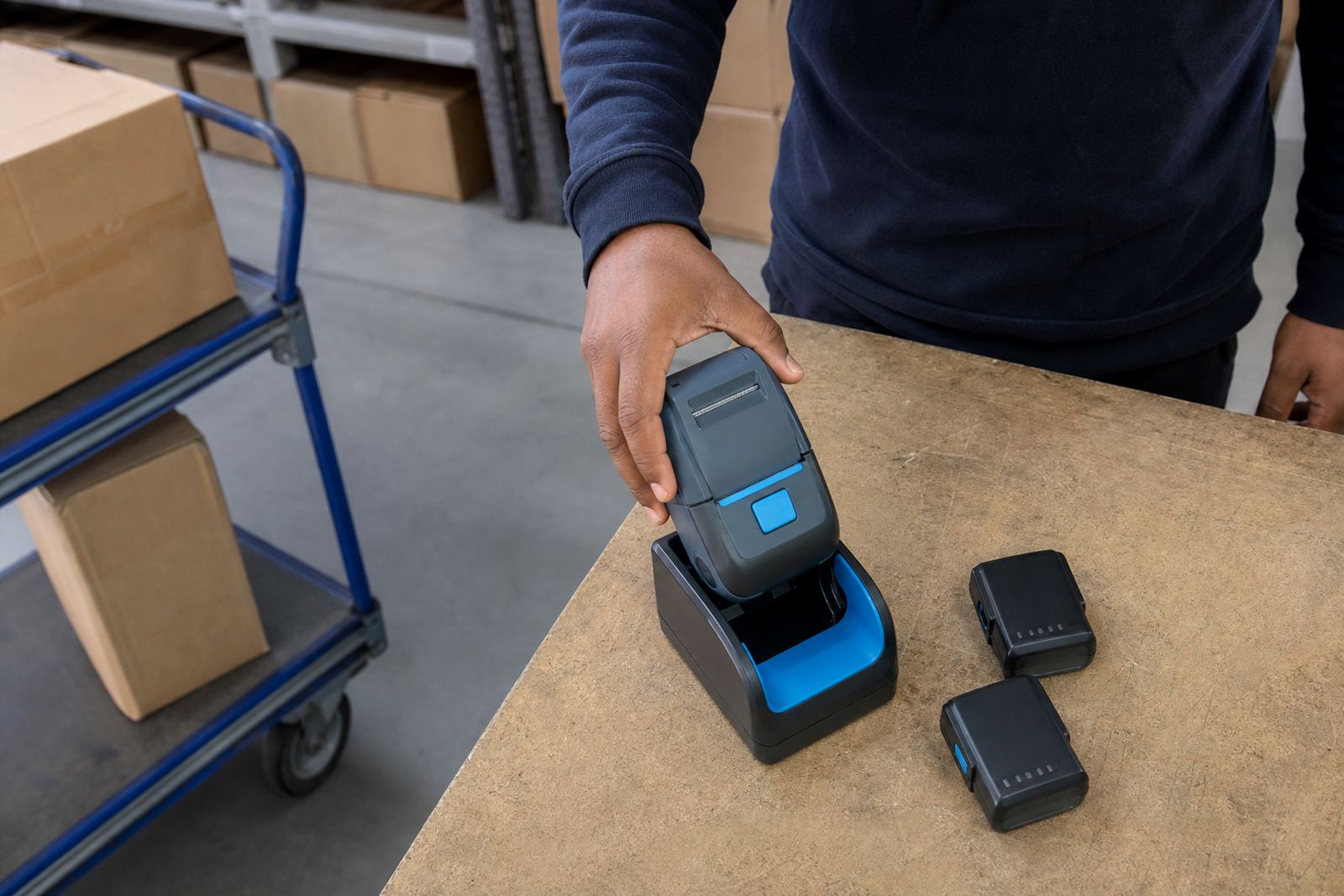
Mobile label printers often move between Bluetooth and Wi-Fi connections, so the roll loading step sits alongside the rest of the setup. A printer that is paired correctly but loaded badly still fails the job. The same is true for battery power. If the battery is weak, the printer can slow down mid-run and the labels may feed unevenly, especially on longer batches.
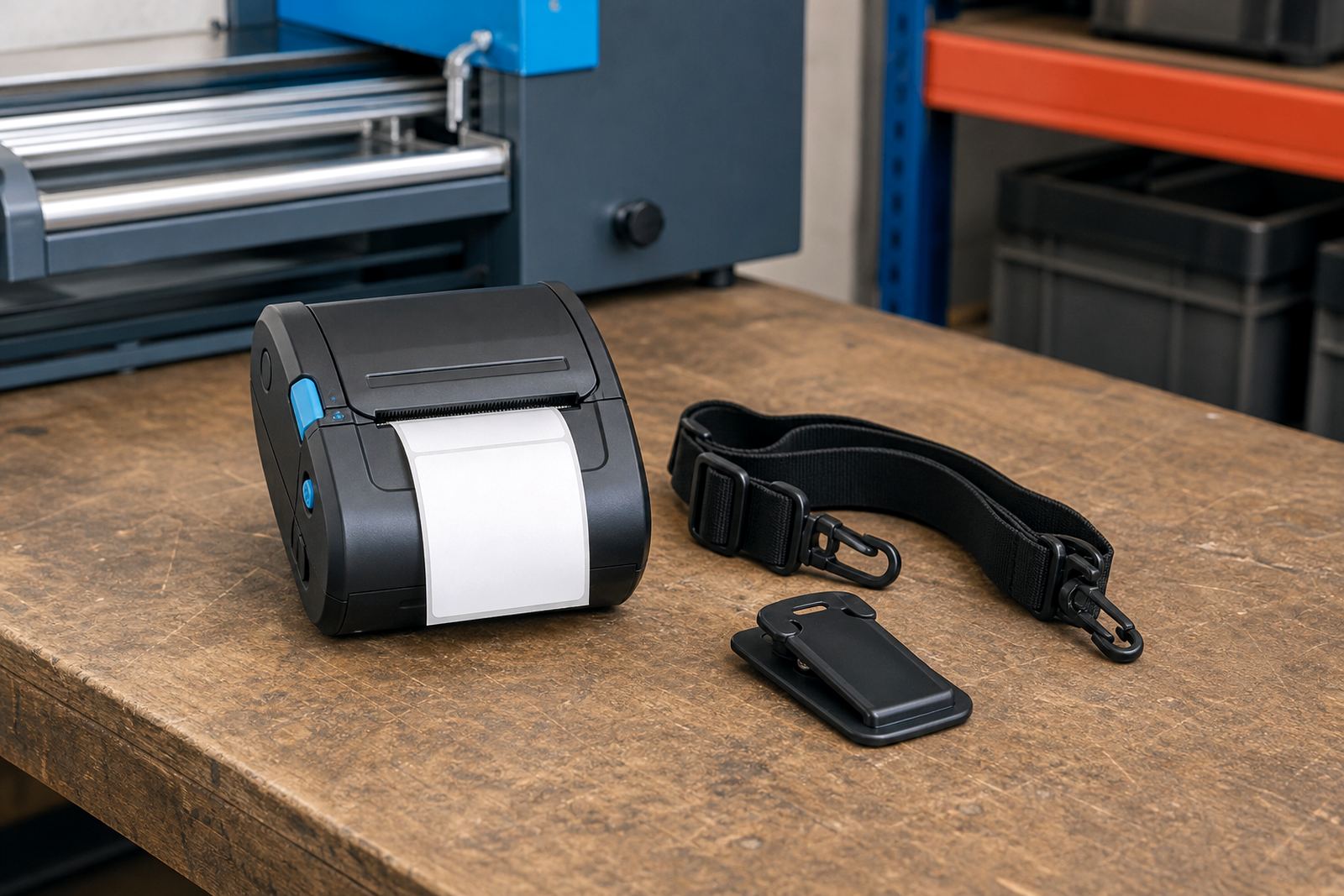
On-site setup usually includes checking the battery, confirming the pairing and loading a test roll before operators begin work. In retail stockrooms, a printer may be clipped to a belt and used all shift, so a loose roll or weak latch causes trouble fast. Belt clips and batteries deserve the same attention as the media path because they affect how the printer sits in daily use.
When labels jam or drift in daily use
Jams are not always about dirty parts. Often the problem starts with the roll being loaded too tightly, a torn leading edge, or adhesive dust building up near the feed path. Printhead cleaning also matters because residue on the head can make the print look faded, which gets blamed on the roll when the real issue is maintenance.
When operators report repeated label faults, we look at the whole chain. The roll size, the guide spacing, the calibration setting, the condition of the printhead and the battery all play a part. A printer used in a courier hub in Durban faces different handling from one sitting at a dispatch cage in Pretoria, but the loading basics stay the same.
- Remove damaged outer labels before loading.
- Clean the printhead with the correct method and material.
- Check for adhesive build-up near the feed rollers.
- Replace a weak battery before blaming the roll.
- Inspect the cover latch if the media shifts in use.
A local job from Montague Gardens to the floor
At our Montague Gardens base, a common call is from a stockroom that has changed label size but kept loading the rolls the old way. The printer may have worked fine for one format, then began missing gaps after the labels were swapped. In that case the fix is usually not dramatic. The roll path gets reset, the sensor is recalibrated, and the operator is shown how to seat the stock without pushing it too deep into the chamber.
That practical reset helps in Cape Town, Johannesburg, Durban, Pretoria and Gqeberha, because the same loading errors appear in different places. Warehouses want fast scanning at receiving, couriers need readable shipping labels, and retail teams need barcodes and QR codes that stay clear through handling. Correct loading supports all of that without adding fuss to the shift.
A short loading routine that saves labels
A reliable routine keeps the printer ready. Check the roll type, line up the guides, feed the labels flat, close the cover evenly and run a test label before the batch starts. If the printer is on mixed duty, such as courier dispatch in the morning and shelf marking later, keep separate rolls clearly marked so the wrong media does not end up in the wrong unit.
Our team handles on-site setup, label calibration, battery testing, print quality fixes, label jam clearing and preventive servicing for mobile label printers. If your roll loading is causing skew or waste, use our contact form and the details can be checked against the printer model, the label size and the work the unit does each day.