Dark enough is not the same as readable
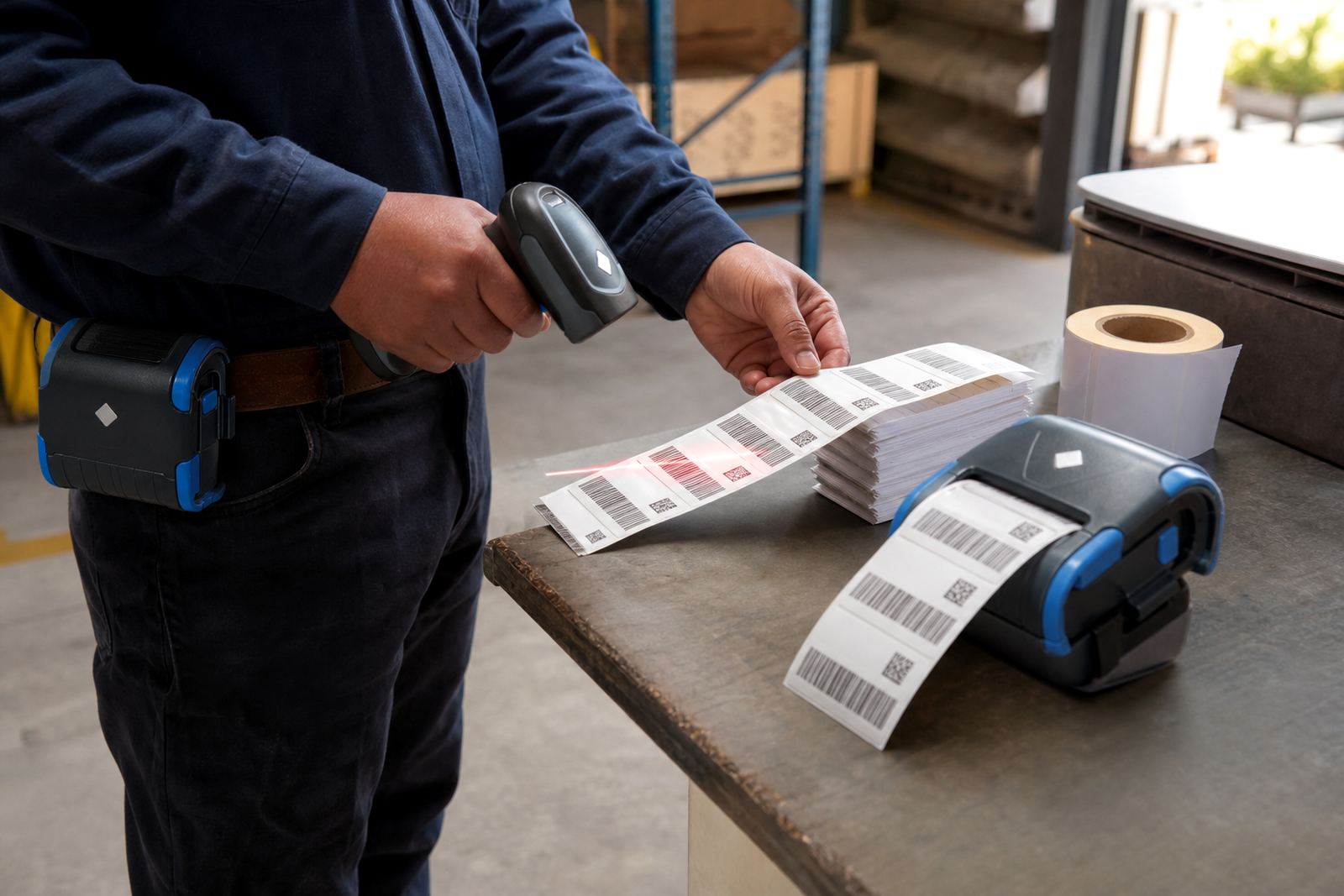
A scanner reads the gaps and bars, not the artwork. If the print is too light, the bars merge into the background and the device struggles to separate one line from the next. If the print is too heavy, small spaces can close up and the code becomes patchy instead of clean. In warehouses and stockrooms that handle cartons, shelf labels and dispatch tags, this shows up as a slow scan at the packing bench or a missed read on a fast-moving tray.
Direct thermal media is common for short-life labels because the heat reacts with the top coat on the roll. Thermal transfer uses a ribbon and produces a tougher print, which suits labels exposed to rubbing, sunlight or longer storage. The right choice depends on how long the label must stay legible and where it sits on the product or carton.
- Keep bars crisp, not grey or fuzzy.
- Match the media to the label life you need.
- Check that the scanner sees the code from normal working distance.
Width, size and quiet margins around the code
A 2-inch printer and a 4-inch printer do not behave the same way. Print width affects how much room the barcode has, how much blank space sits around it and whether the label can carry a batch line, item text and a QR code without crowding. When the layout is cramped, the code may still print but it becomes harder for handheld scanners to settle on it.
Good label design leaves quiet space around the barcode and keeps the print clear of edges, folds and adhesive bleed. A narrow label can work well for shelf tags or small asset labels, but it needs a simpler layout. Bigger cartons usually carry a larger symbol, which gives the scanner more room to read from a slight angle.
- Use the smallest label size that still leaves space around the code.
- Do not push print too close to the label edge.
- Keep human-readable text separate from the barcode field.
Battery life and print consistency on the move
Mobile label printers are used at receiving, on the shop floor and beside delivery cages, so battery health matters. A weak battery can cause slow feed, faded output or interruptions in the middle of a label run. That does not always look dramatic on the printer screen, but it often shows up later when a carton label scans poorly at goods-out.
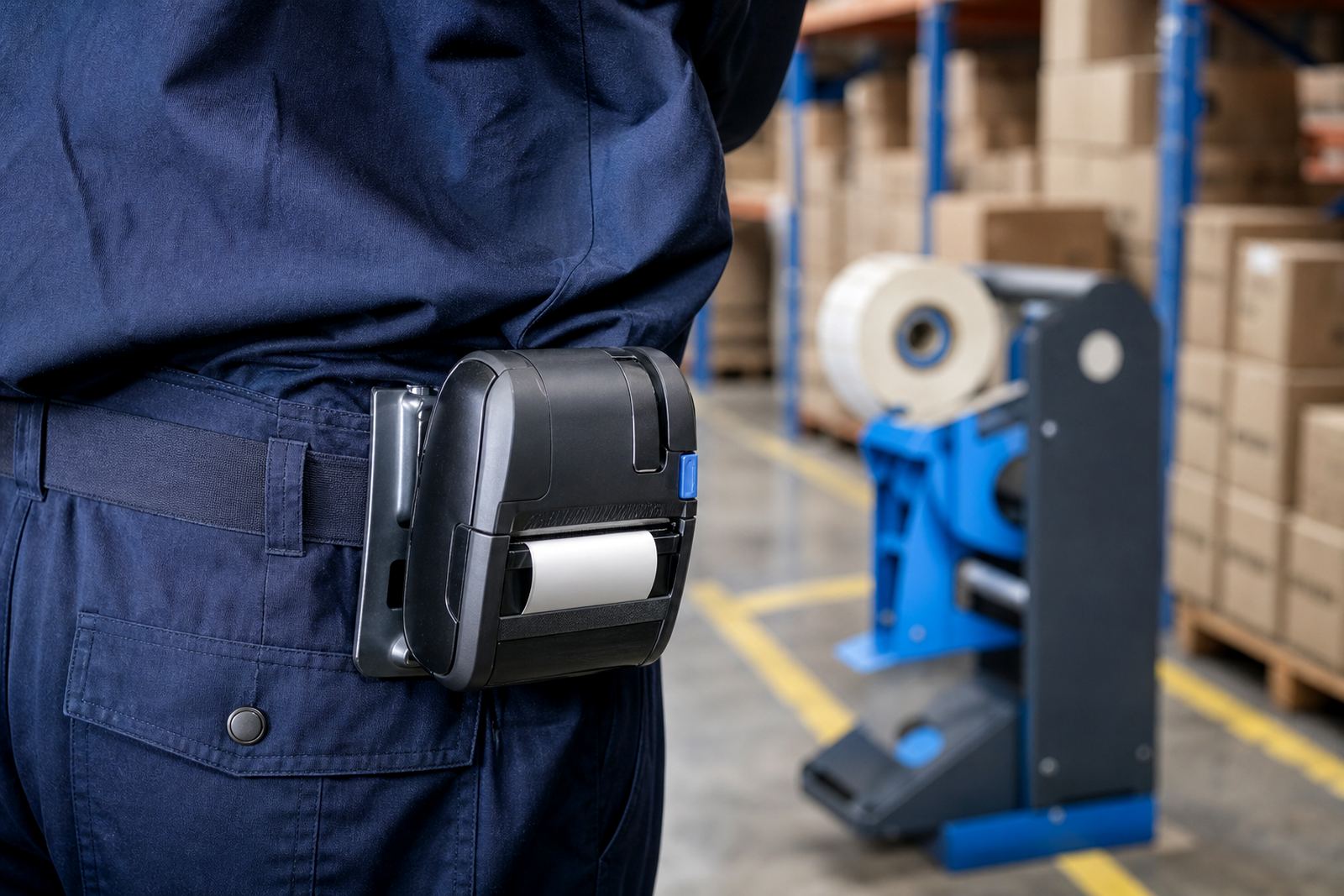
Battery testing is worth doing before a busy shift, especially when the same unit moves between cold rooms, warehouse aisles and vehicles. Belt clips help keep the printer secure during movement, while a checked battery reduces the risk of the unit dropping into a low-power state just as a batch label is being completed.
- Test battery condition before the day starts.
- Watch for print that fades as the roll goes on.
- Replace tired batteries before they interrupt label flow.
Bluetooth, Wi-Fi and the settings that affect print quality
Wireless pairing is useful only when the printer and device speak the same language. Bluetooth setup needs the right pairing steps, while Wi-Fi setup must match the local network settings used in the warehouse or office. When connection settings are off, the printer may still accept a job but the layout can shift, split or arrive with wrong scaling.
Calibration matters just as much. If the printer does not recognise the label gap or black mark properly, the image can sit too high, too low or slightly skew. That can cut off part of a barcode, and even a small shift changes how a scanner sees the code. Label calibration is one of the first checks when a printer starts missing its mark.
- Set the correct media type before printing.
- Pair the device cleanly, then test a sample label.
- Run calibration after changing roll type or label size.
Printhead cleaning keeps the image sharp
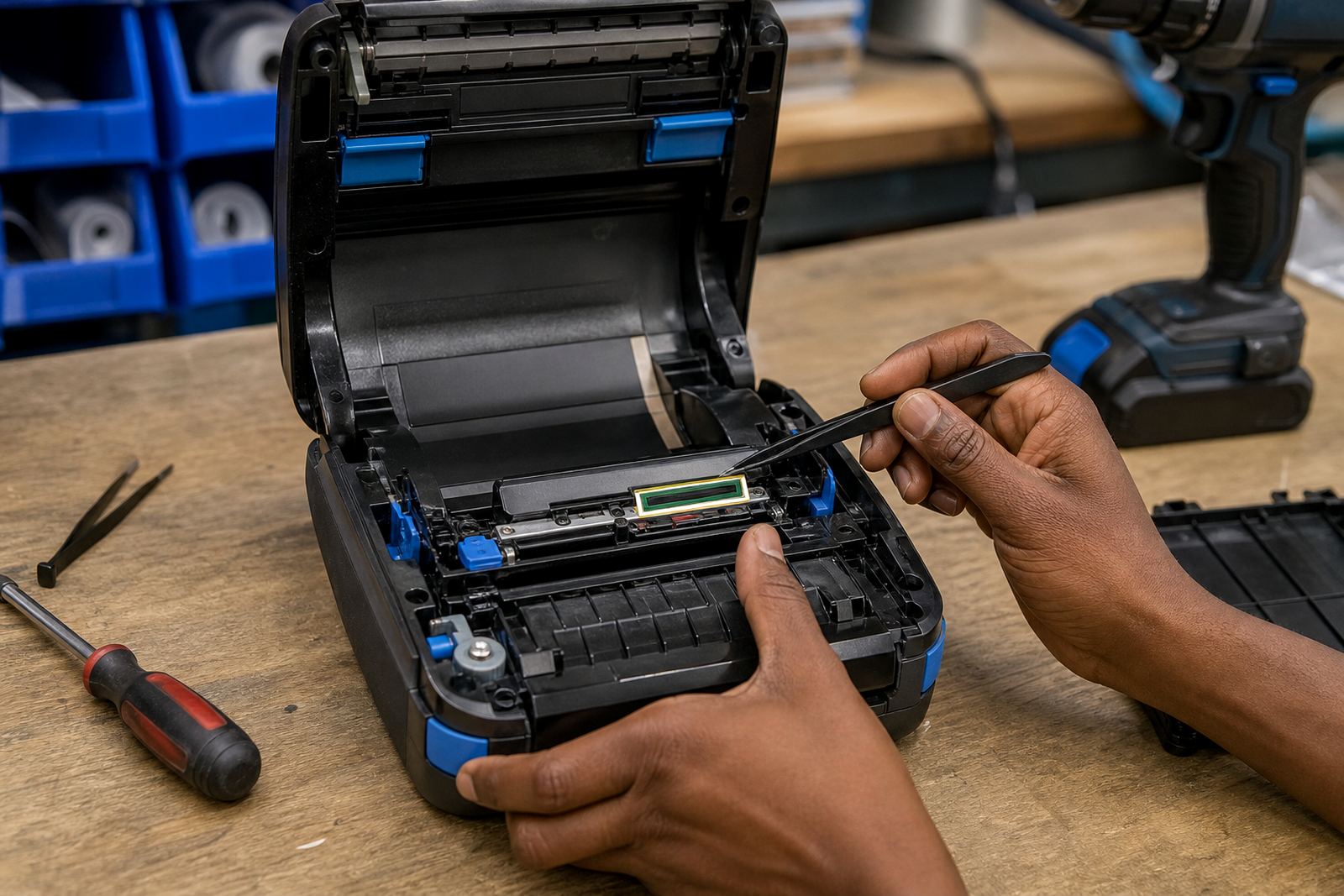
Dust, adhesive residue and fine paper fibres collect on the printhead and roller over time. Once that layer builds up, the bars can look pale in one section and heavy in another. A scanner may still catch the code on a calm day, but once the stockroom gets busy the weak label becomes a problem.
Printhead cleaning should be part of normal servicing, not a rescue step. A clean head gives steadier heat across the label, which keeps the bars even from top to bottom. It also helps extend the life of the printer because the machine does not have to work against build-up on every job.
- Clean the printhead with the proper method, not rough cloths.
- Check the roller for glue, dust and worn patches.
- Inspect labels after cleaning to confirm the print has settled.
A Cape Town stockroom example that shows the problem
In Montague Gardens, a retail stockroom may print shelf labels in the morning and dispatch labels later in the day. If the roll is the wrong type, the printer is not calibrated, or the printhead has residue on it, the barcode can look acceptable to the eye but still read badly at the till or packing bench. That is where the issue becomes expensive in time, because the item has to be rescanned or reprinted.
The fix is usually practical. Check the label size, clean the head, test the battery, and confirm the wireless connection if the printer is working off a mobile device. In many cases the problem is not the barcode itself, it is the condition of the print behind it.
- Match the roll to the environment and storage period.
- Test a few labels before sending a batch to the floor.
- Keep a regular cleaning and calibration routine.
What reliable scanning really needs
Barcode print clarity comes from a set of small decisions made together. The label must suit the job, the code must have enough room, the print must be dark enough without filling in the spaces, and the printer must stay clean and calibrated. When those parts line up, scanning becomes ordinary and unremarkable, which is exactly what stock control teams need.
For warehouses, couriers and retail stockrooms across Cape Town, Johannesburg, Durban, Pretoria and Gqeberha, that ordinary result saves a lot of handling later. The label should leave the printer ready for the next item, not create a queue at the scanner.